2026-07-29 · 7 min read
Create lessons with your students in mind
Pick a student in Create lesson, and Lesso drafts the next topic from their most recent lesson at the same level, age, and language—so follow-up classes fit each learner without rebuilding the form by hand.
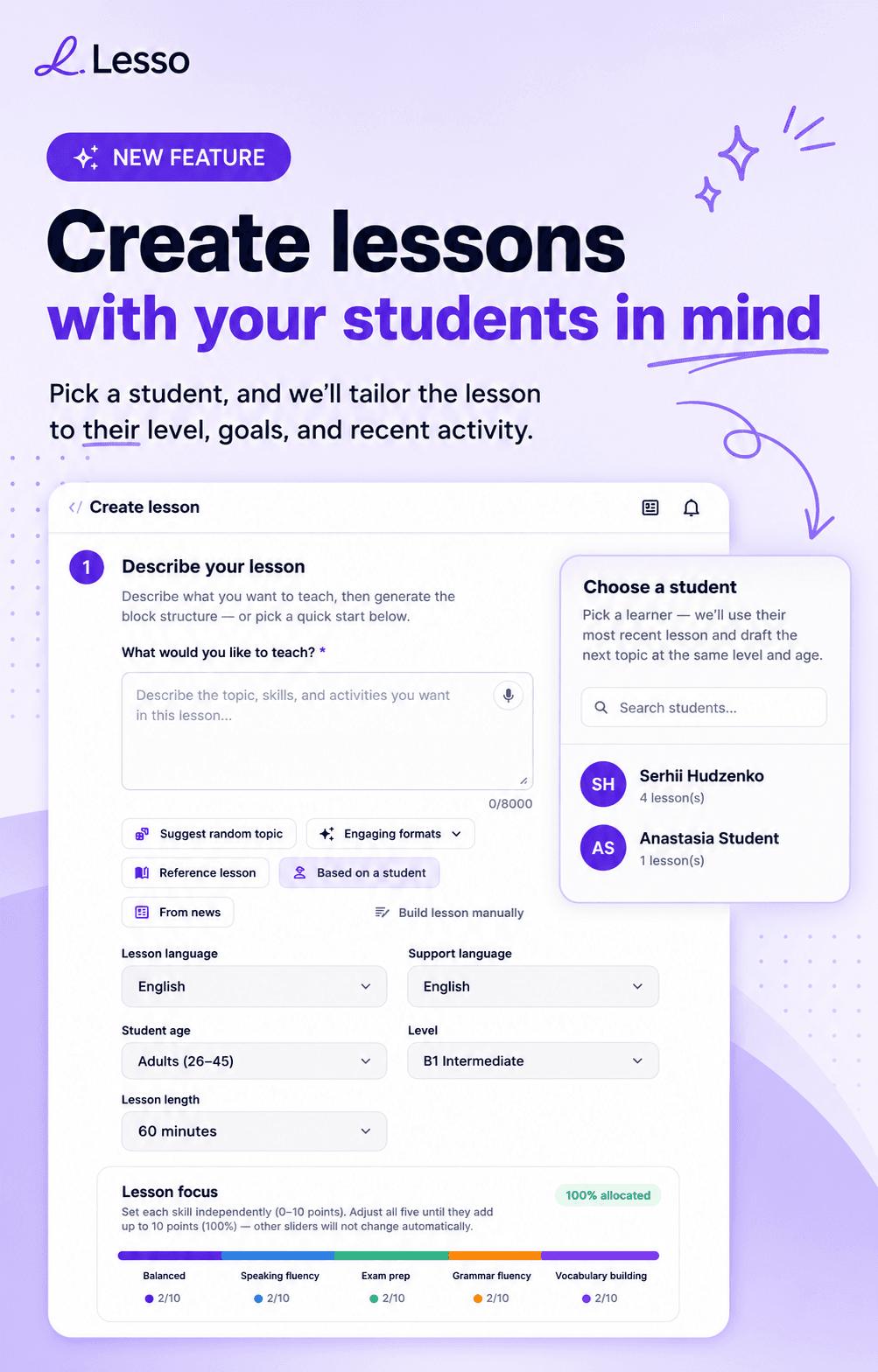
New: Based on a student
Every teacher knows the gap between “I finished last week’s lesson” and “what should we do next?” You remember who struggled with past forms, who raced ahead on vocabulary, and who has only opened one lesson so far—but retyping level, age, language, and a related topic every time still slows you down.
Today we’re launching Based on a student in Create a new lesson. Pick a learner from your roster, and Lesso uses their most recent lesson on your account to set level, student age, and lesson language, and to draft a related next-topic prompt—so the new lesson is already aimed at that student’s continuum, not a blank adult B1 default.
You stay in control. The picker fills the form as a strong starting point; you edit the brief, tweak skill focus, generate structure, and publish the same shareable link you already use.
What it does for you
Continuity without copy-paste. When you choose a student, Lesso looks up the lesson they opened most recently (among your published lessons they’ve accessed). That lesson becomes the reference: topic context is appended to your brief, and form fields for level, age, language, and length are filled from that lesson when they match your normal options.
Right-sized follow-ups. A teen on A2 stays on A2 teens. An adult on B1 Intermediate keeps B1 Intermediate. You are not hunting dropdowns while the student waits for the next assignment.
Works with how you already teach. After the form is filled, generate structure, edit blocks, regenerate any single activity, and publish—same workspace flow as Suggest random topic, Engaging formats, Reference lesson, or From news.
How to use it (step by step)
1. Open Create a new lesson from your teacher workspace (or start a new lesson from the sidebar).
2. In step one, Describe your lesson, find the quick-start row under the topic box—Suggest random topic, Engaging formats, Reference lesson, Based on a student, and From news.
3. Click Based on a student. A panel opens titled Choose a student, with the hint: pick a learner and Lesso will use their most recent lesson to draft the next topic at the same level and age.
4. Search if you need to—type a name in Search students…—then click the student. Only learners who already have at least one lesson access on your account appear (the list shows how many lessons each has).
5. Wait for Loading their latest lesson… then review the form: you should see a chip such as Next for [Name], with level, student age, and language aligned to that last lesson, and a related-topic suffix in the description.
6. Edit the prompt if you want a sharper goal—“review phrasal verbs from last week,” “same level, more speaking,” or a new theme that still fits them. Adjust lesson length and Lesson focus (speaking, grammar, vocabulary, and the rest) as usual.
7. Generate structure, review blocks, preview as a student if you like, then publish and share the link with that learner—or the whole class if the follow-up works for everyone.
8. To start over without that student, use Remove student follow-up on the chip, or Clear everything at the top of the wizard.
When to use it (and when not to)
Use it when you teach repeatedly with the same students and want the next lesson to continue from what they actually opened last—not from memory of last month’s unit.
Use it for mixed-level groups: build one follow-up per student (or per band), publish separate links, and assign accordingly. Live monitoring still shows who is on which lesson.
Skip it for a brand-new open-enrollment group with no lesson history yet—the empty state will say you need to share a lesson first. Create and assign one lesson, then Based on a student becomes available once someone opens it.
You can still pair this with Engaging formats or From news after you’ve set the student context—formats and news change the story spine; Based on a student sets who the lesson is sized for.
Tips for stronger follow-up lessons
Name the goal in one line at the top of the brief after the auto-filled reference: “Next for Mariia: consolidate past simple in travel stories, more speaking than reading.” AI reads that before it builds blocks.
If the last lesson was heavy on reading, push Lesson focus toward speaking or vocabulary for balance—fields are prefilled, not locked.
For exam tracks, keep the same CEFR level from the student pick, then add “Cambridge B1 writing part 1 style” or similar in the description so tasks match the paper.
After they finish, start the next Create lesson from Based on a student again—the “most recent” lesson updates as they open new material, so the chain stays current.
Try it this week
Pick one active student who completed a lesson recently. Open Create a new lesson, click Based on a student, select them, skim the filled level and brief, add one clear next-skill sentence, and generate.
Publish, share the link, and in the next live session ask what felt like a natural next step. That feedback tells you how to tweak skill focus on the one after that.
For other ways to seed a lesson, see Build lessons from the news and Super-engaging lesson formats. For the block toolkit once structure is ready, see How to use lesson blocks effectively.