2026-07-29 · 10 min read
Create speaking rooms your way
Design interactive AI conversations in minutes: choose room format (Conversation or AI teacher), room type, time limit, and scenario—from a random topic, a lesson, a student, or the news. Full teacher guide with step-by-step usage.
New: speaking rooms built for how you teach
Speaking practice only works when the scenario matches the student in front of you. A job-interview rehearsal is not the same as a grammar explanation followed by questions, and a mystery room where students unlock a code is not the same as open role-play. Teachers needed one place to choose the shape of the practice—not just the topic.
Create speaking room now lets you design that shape in minutes. Pick how students talk (Conversation vs AI teacher), how the room works (standard role-play or interactive mystery), how long they speak (5–20 minutes), and how you seed the scenario (random topic, lesson, student follow-up, or news). Publish a link or invite by email—students join without needing their own Lesso Talk subscription when you assign the room.
Below is a full usage guide: what each choice means, what it costs, and how to create a room that is ready for class this week.
What you can build (at a glance)
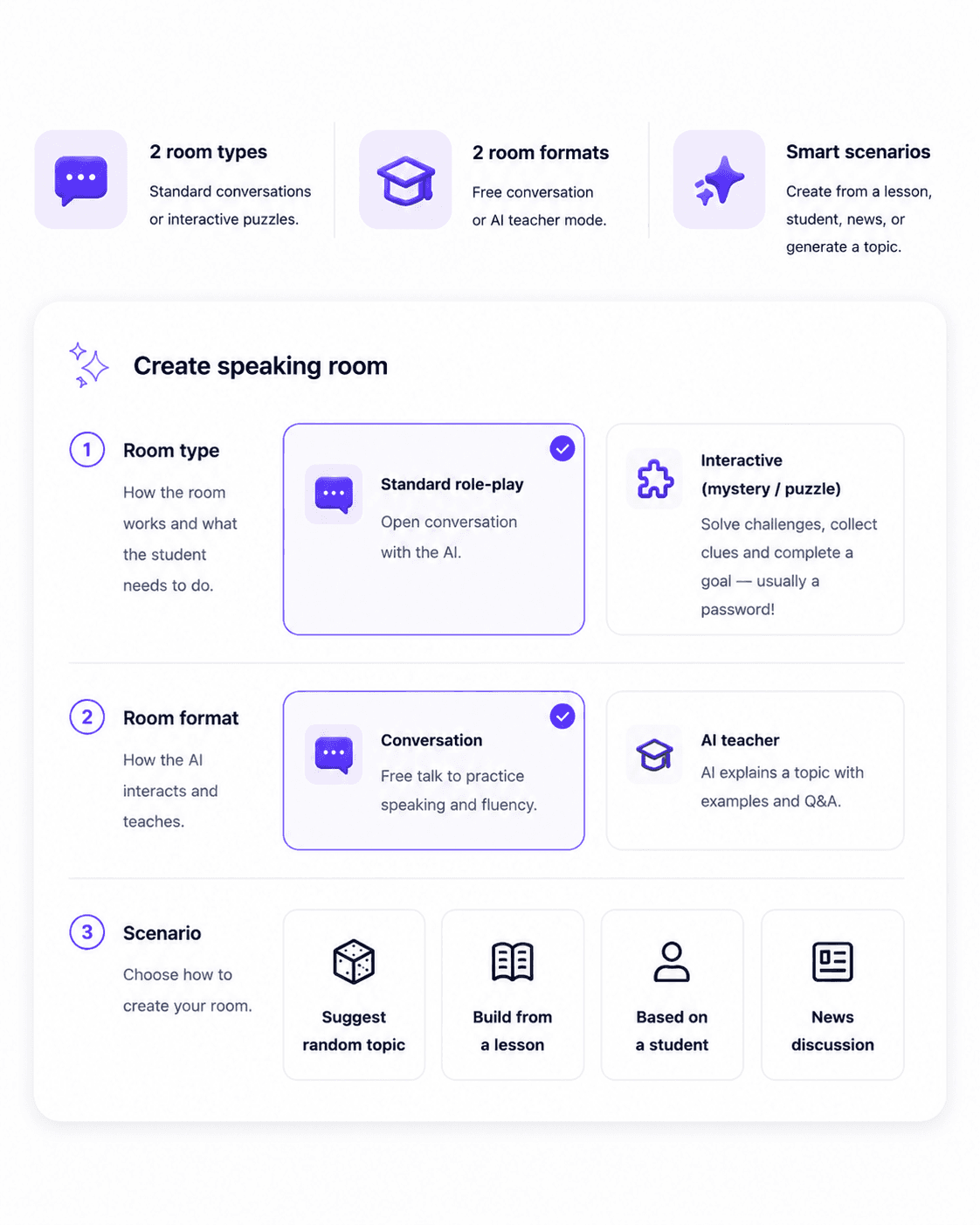
2 room formats — Conversation for free talk and fluency, or AI teacher for a pre-recorded mini-lesson with examples, then live voice Q&A (the same listen-then-ask experience students already know from Learning Path).
2 room types (Conversation only) — Standard role-play for open dialogue, or Interactive mystery/puzzle where students collect clues and uncover a secret answer the AI will not give away when asked directly.
Smart scenario builders — Suggest a random topic, build from one of your lessons, invent the next topic based on a student, or start from a current news article.
Time limits you control — Preferable session lengths of 5, 10, 15, or 20 minutes of live speaking (default 20). The timer is enforced in the live session so class time stays predictable.
Step 1 — Choose room format first
Open Speaking rooms → Create speaking room from your teacher workspace.
Start with Room format. This comes before room type because it changes what the rest of the form needs.
Conversation — Free talk to practice speaking and fluency. Students play a role opposite an AI partner. You can still choose standard vs interactive room type, roles, speaking goals, and optional scene drama.
AI teacher — The AI explains a language topic with clear examples in a comprehensive pre-recorded lesson, then students ask questions by voice. Room type (mystery/puzzle) is hidden here—it does not apply. You fill one Topic field instead of a full role-play scenario.
Tip: Use Conversation for situational practice (“hotel complaint,” “first day at work”). Use AI teacher when the goal is to teach a language point first (“past simple vs past continuous,” “polite requests”), then check understanding live.
Step 2 — Room type (Conversation only)
If you chose Conversation, pick Room type next.
Standard role-play — Open conversation with the AI. Best for interviews, everyday scenes, debates, and fluency practice.
Interactive (mystery / puzzle) — Students solve challenges, collect clues, and complete a goal—usually a password or secret answer. The AI knows the answer but never reveals it when asked directly; students must reason out loud.
Interactive rooms can generate a full mystery scenario in one click, including clues (text or optional AI images). Image clues cost credits when generated; text clues are enough for a strong session.
Step 3 — Language, level, and time limit
Practice language — The AI speaks only this language for the live speaking portion (and for AI teacher Q&A).
Level — A2, B1, B2, or C1. Match the CEFR band your students are working toward.
Time limit — Choose 5, 10, 15, or 20 minutes of live conversation (default 20). For AI teacher rooms, this is the live Q&A window after the pre-recorded lesson; listening to the lesson itself is free and separate.
You can change the time limit later in Edit room details on the room lobby. New sessions pick up the updated limit; sessions already in progress keep their original cap.
Step 4 — Build the scenario (Fill with AI)
Under Scenario, use Fill with AI—or type everything yourself.
Suggest random topic — For Conversation, invents a situation plus student and AI roles. For AI teacher, suggests a concrete, teachable topic (not a vague “grammar” label)—the kind of mini-lesson worth explaining for ten minutes.
Build from a lesson — Pick one of your lessons. Conversation rooms get a speaking scenario that reuses that lesson’s topic and vocabulary. AI teacher rooms get a teachable topic grounded in that lesson.
Based on a student — Pick a learner. Lesso uses their most recent lesson and invents the logically next speaking topic (or next AI teacher topic) at the same level—ideal for 1:1 follow-ups.
News discussion (Conversation) — Pick a headline; Lesso drafts a discussion scenario so students talk through the story, opinions, and implications.
After AI fill, edit the situation, roles, and speaking goals. For interactive rooms, review the secret answer and clues before you create.
AI teacher rooms — how they work for students
Creating an AI teacher room costs 5 credits once. That covers generating a comprehensive pre-recorded lesson script and audio (informative explanation, examples, common mistakes, useful phrases)—the same pipeline Learning Path uses for weekly AI teacher items.
Students open the room, listen to the lesson with captions and highlight cards, then tap Ask a question to start live voice Q&A with the AI teacher. Listening is free. Voice Q&A is billed to your teacher credits per minute (same rate as Try room and other assigned speaking sessions).
The student layout matches Learning Path: listen first, then speak. You do not need to rebuild a separate “explanation lesson”—the room is the lesson.
Credits and publishing (what to expect)
Conversation and interactive rooms — Creating and publishing is free. Live AI speaking (including your Try room preview and assigned students) uses your teacher credits per minute.
AI teacher rooms — 5 credits to create. Listen free; Q&A per minute as usual.
Students do not need a Lesso Talk subscription to join teacher-assigned rooms.
After Create room, you land in the lobby: edit details, adjust the AI prompt if needed, Try the room yourself, then Publish (public link, private roster, or invite by email).
How to use it this week (checklist)
1. Go to Speaking rooms → Create speaking room.
2. Choose format first: Conversation for practice scenes, AI teacher for explain-then-Q&A.
3. If Conversation, choose Standard or Interactive.
4. Set language, level, and time limit (start with 20 minutes unless you need a short warm-up).
5. Fill with AI—try Based on a student for a 1:1 learner, or Build from a lesson for class continuity.
6. Skim roles, goals, and (for mysteries) the secret answer. Edit anything that feels off.
7. Create room → Try room for 1–2 minutes → Publish and share the link.
8. In the next class, debrief with two questions: Which phrase do you want to reuse? Where did you get stuck?
Tips for stronger rooms
Keep AI teacher topics specific—“Past simple vs present perfect in travel stories,” not “grammar.” Specific topics produce denser, more useful recordings.
For interactive rooms, make the goal memorable (a code, a name, a place). Clues should reward speaking, not guessing in silence.
Match time limit to the task: 5–10 minutes for a warm-up role-play; 15–20 for interviews, mysteries, or rich Q&A after an AI teacher lesson.
Reuse Build from a lesson after every unit so speaking and homework lessons stay aligned.
For mixed levels, create two rooms at different bands and assign links by group—same format, different level and topic seed.
Try it now
Open Create speaking room, leave format on Conversation or switch to AI teacher, set a 20-minute limit, and run Suggest random topic once. Create the room, try it yourself, then publish for one student.
If you already taught a lesson this week, use Build from a lesson instead—so speaking practice continues what they already studied.
For more speaking activity ideas you can paste into custom prompts or rooms, see 20 AI Speaking Activities for ESL Teachers. For how AI teacher weeks appear on Learning Path for students, see your student Learning Path after assigning a room.