2026-06-02 · 26 min read
Four new interactive lesson blocks: dictation, word ordering, spot the mistake, and flashcards
Lesso now includes four new student task blocks—dictation, word ordering, spot the mistake, and flashcards—each AI-generated, fully interactive, and built for real classroom engagement. Here is how they work and how to use them.
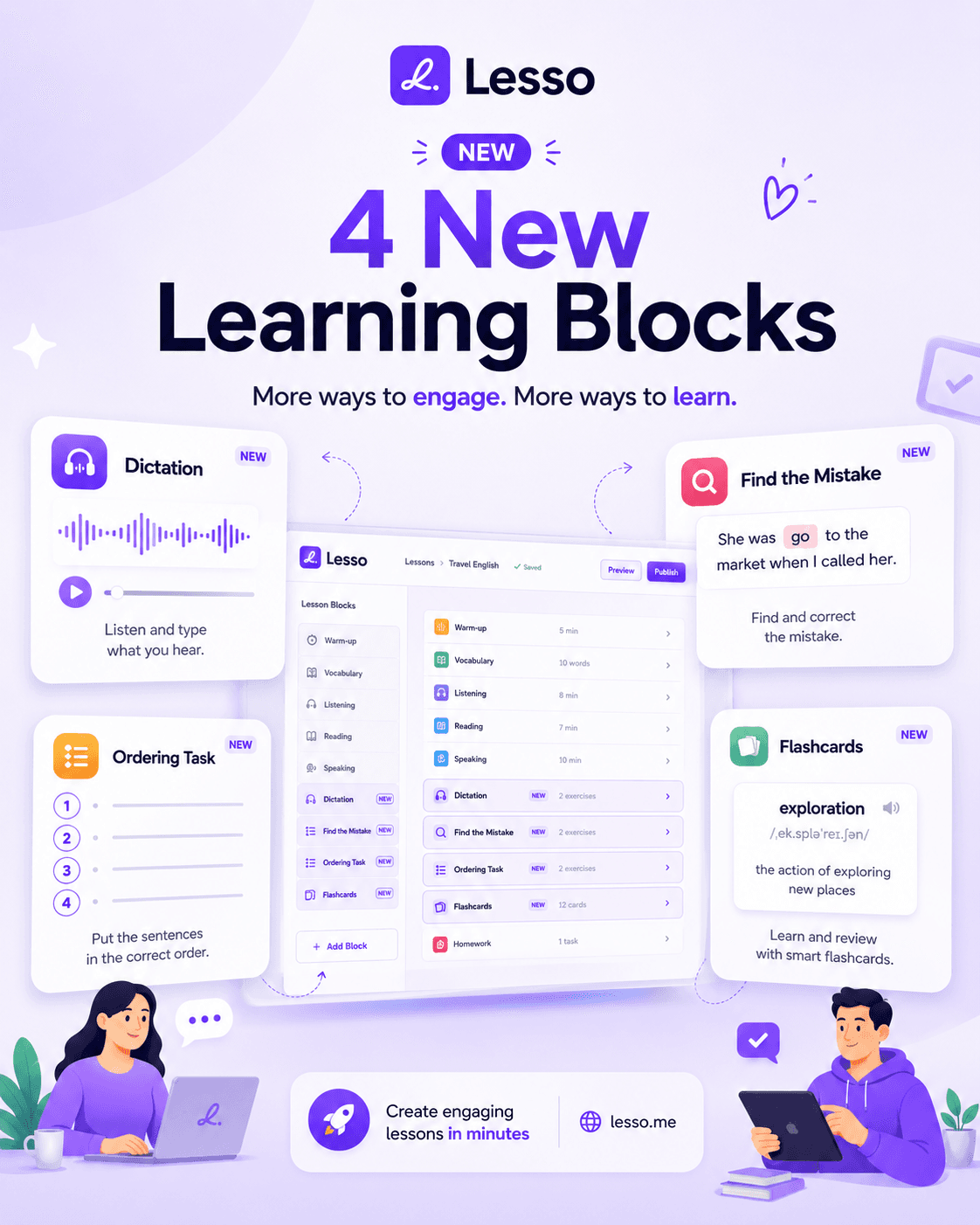
More ways to engage. More ways to learn.
Language lessons stick when students do something—not only read a passage or tap A/B/C. Today we are shipping four new interactive blocks in the Lesso lesson editor: Dictation, Word ordering, Spot the mistake, and Flashcards. They sit alongside your existing vocabulary, listening, quizzes, and speaking tasks, each marked with a NEW badge in the block picker so you can spot them instantly.
Together they cover skills teachers ask for constantly: listening accuracy, sentence structure, error correction, and vocabulary review. Every block is a gold student task: students interact inside the lesson card, answers save to their account, and you can monitor progress live while the class runs.
You still describe the lesson once; AI fills each block with level-appropriate content tied to your topic, target language, and support language. You review, edit settings, regenerate a single block if needed, then publish the same link you already use. Nothing changes about sharing or live monitoring—only the range of activities students can complete.
Where the four blocks live in your lesson
Open any lesson in the teacher workspace and choose Add block. Under student tasks you will see the new types next to familiar options like multiple choice, fill in the blanks, and matching.
Word ordering is for building sentences from shuffled words across several mini-slides. Spot the mistake presents a short passage with intentional errors; students tap a wrong word and type the correction. Flashcards show a deck of term-and-definition cards students flip one at a time. Dictation plays a script aloud while students type what they hear.
In a typical travel-English style lesson you might sequence warm-up vocabulary, a listening block, then one or two of the new tasks for homework—for example dictation plus flashcards for review, or spot the mistake after a reading block when you want focused editing practice.
The promotional graphic for this launch shows exactly that mix: a Travel English outline with warm-up, vocabulary, listening, reading, speaking, then dictation, find-the-mistake, ordering, flashcards, and homework. You do not have to use all four in one lesson; one well-placed block often beats four rushed ones.
Why these four blocks matter pedagogically
Multiple choice checks recognition; it does not train listening spelling, clause order, or self-editing. Schools still teach dictation, sentence unscrambling, error correction, and flashcard review because they target different cognitive moves: decode sound to text, apply syntax, notice form, and strengthen lexis.
Lesso already had strong input blocks (text, listening, vocabulary) and classic output tasks (writing, voice, AI conversation on Pro). The gap was mid-level interactive practice that feels modern on a phone—tap, flip, listen, type—without you building a custom worksheet per class.
These blocks also align with exam and syllabus language: dictation for listening precision; ordering for grammar and word order; spot the mistake for editing and proofreading; flashcards for lexis before or after a topic. You can mark any block as required so students must finish it before the lesson counts complete, which pairs well with gating in longer lessons.
Dictation: listen and type what you hear
The dictation block is built for classic listen-and-write work with a digital workflow. Students see a short instruction line, a prominent play control, and a text area for their transcript. Teachers see the full script in the workspace preview and in the block answer key area—students do not get the script until you choose to discuss it in class.
When you generate the block, AI writes a plain-language script in your lesson target language (for example English), sized to the word range you set in block settings. Defaults target roughly 20–45 words in the script, with separate controls for difficulty (easy, medium, hard) and a minimum word count students must type to mark the step complete when the block is required.
Playback uses OpenAI text-to-speech—the same generated audio pipeline as listening blocks—so every student hears a consistent voice at a slightly slower pace suited to dictation. Audio is created when you generate the block and stored with the lesson; students replay it as often as they need from a standard audio player.
Pedagogically, place dictation after students have met the topic vocabulary, or use it as homework consolidation. Regenerate with an additional prompt such as “slower pace, A2, names and numbers” if the first script is too long. Credits for dictation generation are in line with other rich task blocks; regenerating one block costs less than building the whole lesson again.
Word ordering: rebuild sentences word by word
Word ordering turns sentence structure into a tactile task. Each sentence is its own slide in a slider—students and teachers move between slides with previous/next controls and dot indicators at the top of the block. If AI packs several sentences into one field, Lesso splits them automatically so each sentence gets its own slide.
On each slide, words appear in a shuffled bank; students tap words in the order they believe is correct, and the built sentence updates live. They can remove a word with a tap on the sentence strip and jump to another sentence anytime without finishing the current one.
Shuffle order is stable per student and per slide (seeded from the block id) so refresh does not reshuffle mid-attempt, but different students can see different orders—useful for integrity in homework. Duplicate words in a sentence are handled: the bank tracks how many times each token was used.
Teacher settings include slide count (how many sentences), difficulty (easy favors shorter sentences; hard allows longer and more complex order), and an optional task prompt describing grammar focus or topic. AI returns a JSON list of sentences in settings; students see only the instruction line in content, not a wall of raw data.
Teacher preview uses the same interactive slider and word bank as students, with an optional Show correct sentence toggle—so you can walk through every slide the way the class will, not just read a static answer key.
Spot the mistake: find and correct errors in context
Spot the mistake (shown as “Find the mistake” in some of our launch artwork) teaches editing in real text. AI produces a student-facing passage with a set number of intentional errors—spelling, grammar, or word choice depending on your prompt and difficulty. Students read normally; when they tap a word, it highlights as a mistake candidate and a correction field appears inline so they type the fix.
Unmarked words stay plain text so the passage reads like a normal paragraph, not a worksheet of gaps. That was an explicit design choice: language should look natural until the student engages. In teacher preview you see both the flawed passage and the corrected version plus the structured error key listing each wrong form and its fix.
Settings let you set error count, difficulty (obvious vs subtle mistakes), and generation prompt. The model stores passage, correctPassage, and errors in block settings; the short student-facing instruction lives in content. Use it after a writing block (“find mistakes like these in your own work”) or as exam practice for proofreading.
Because corrections are typed, you get richer evidence in live monitoring than a multiple-choice key. Pair with a required flag if you want every student to attempt at least the minimum engagement before submitting the lesson.
Flashcards: flip, review, and complete the deck
The flashcards block is a digital deck inside the lesson—no export to Anki required for a quick review. Each card shows a term on the front; students tap to flip and read the definition (typically in your lesson support language while the term stays in the target language). Navigation moves card by card; progress shows which card they are on.
Completion is based on engagement: students must view every card at least once for the block to count as done when completion rules apply. That makes it ideal for vocabulary sets drawn from the same lesson topic—ten words from the reading, phrasal verbs from the listening, or exam word lists you describe in the generation prompt.
Set card count and theme in block settings before generation. AI returns a JSON array of term/definition pairs. Teacher preview lays out the full grid of cards for a fast sanity check; student view uses the focused flip interaction with a progress indicator.
Flashcards cost slightly fewer generation credits than the other three new blocks, which makes them attractive for end-of-lesson review or spaced repetition homework without spending your whole coin budget on one step.
How AI generates content for each block
All four blocks use the same generation pipeline as your other AI tasks: you add the block, tune settings, generate with Lesso coins, then edit or regenerate. The model receives your lesson brief (topic, level, languages, skill focus) plus block-specific rules—for example ordering must output settings.slides as JSON, dictation must put the spoken script in settings.dictationText, spot the mistake must put the flawed passage in settings.passage.
After generation, open lesson view and read as a student. If one block is weak, use the circled regenerate control on that block row: credits charge at the regeneration rate, the block clears stale AI output, and a fresh run replaces text and settings. You can add “Additional AI instructions” on regenerate for tone, level, or content constraints.
Every block includes a teacher answer key section in the workspace (passages, corrections, sentences, cards, dictation script) so you never need to parse JSON in the editor—forms and previews handle that. If you prefer full manual control, leave generation fields empty where allowed and paste your own sentences, cards, or script into settings.
Teacher settings cheat sheet
Dictation: scriptWordMin and scriptWordMax (default 20–45 words), difficulty, minWordCount for completion, generation prompt, dictationText (filled by AI or you).
Word ordering: slideCount, difficulty, generation prompt, slides JSON (AI-filled).
Spot the mistake: errorCount, difficulty, generation prompt, passage, correctPassage, errors key.
Flashcards: cardCount, generation prompt, cards JSON (term + definition per card).
Across all four, difficulty steers the model toward shorter or longer language, simpler or subtler mistakes, and appropriate vocabulary. Slide count, error count, and card count steer volume so a homework block does not accidentally become fifteen minutes of drills unless you want that.
Example lesson sequences that work
B1 travel English (50 minutes): vocabulary block → listening dialogue → spot the mistake on a hotel email paragraph → short writing → flashcards for eight travel verbs as homework. Students meet the topic, hear it, edit it, produce it, then review lexis.
A2 young learners (40 minutes): image warm-up → text intro → word ordering with three short sentences from the story → matching picture words → dictation of a 25-word description you generated at easy difficulty. Ordering stays controlled; dictation checks listening without a full listening block.
Exam prep (45 minutes): grammar block → multiple choice → spot the mistake at hard difficulty with four subtle errors → dictation using formal register in the generation prompt. Editing plus listening spelling mirrors many exam task types.
Self-study library lesson: reading block only in class; publish link with flashcards plus ordering for the same topic at home. Live monitoring next lesson shows who viewed all cards and who finished every slide.
What students experience on the link
Students still move card by card through the published lesson. Each new block is one step: they cannot skip ahead if your lesson uses progress gating, and required blocks must be completed (and the lesson submitted on the last step when you use submit flow) before the lesson marks complete.
Dictation: play, pause, type, see word count toward your minimum. Ordering: sentence slider, word bank, tap to build—move between slides freely. Spot the mistake: tap word, type correction, tap again to unmark. Flashcards: flip, next, until all cards viewed.
Answers persist in their account for your review; live monitoring highlights the block they are on and when their answers update. None of the four blocks require Pro by themselves; they use standard generation credits like other AI task blocks.
Credits and planning
Generation spends Lesso coins per block type. The new task blocks are priced similarly to other interactive tasks (flashcards slightly less; ordering, spot the mistake, and dictation in the same band as rich tasks like matching or short answer). Regenerating a single block after a bad run costs about forty percent of the first generation—cheaper than deleting the lesson and starting over.
Efficient planning: generate input blocks first, then add one or two of the new interactions, not all four every time. Use flashcards as a cheap review closer; use dictation when you need listening output without building a full listening block with separate comprehension questions.
Organization teams draw from the shared pool the same way as for vocabulary or quizzes; teachers on individual plans see the same per-block costs in the workspace before they confirm generation.
Tips for strong results on the first try
Write a specific block description or generation prompt: not “grammar” but “past simple vs present perfect, three errors, B1, travel blog tone.”
Set counts before you generate—slide count, error count, card count, dictation word range—so the model does not guess volume.
Open lesson view before publish; run one block yourself on a phone to hear dictation audio and feel ordering taps.
If student text looks unchanged after regenerate, wait for generation to finish; the workspace now updates live from the generation stream. Still stuck? Regenerate again with a stricter additional prompt.
Mark only the blocks you care about as required; optional flashcards work well as extension work.
How this fits the rest of Lesso
The four blocks extend the lesson builder described in What is Lesso.me? and the sequencing advice in How to use lesson blocks effectively—they do not replace listening, speaking, or AI conversation, they complement them.
Schools on Lesso Teams can standardize templates: one ordering block per grammar lesson, one dictation per unit test review. Independent teachers can experiment on a single published link this week and expand next week.
We built these blocks because teachers asked for more varied student tasks without leaving Lesso. The launch graphic’s headline still holds: create engaging lessons in minutes—now with four more ways for students to practice inside the same link you already share.
Sign in at Lesso.me, open a lesson or start a new one, add a NEW block from the student tasks list, and generate. If you are new, read our Teams post if you teach with colleagues and need a shared coin pool. Questions and feedback are welcome through the site contact links—we will keep refining prompts and settings from what you teach in real classrooms.