2026-09-28 · 9 min read
From prompt to lesson — teach with Lesso MCP in ChatGPT
Connect ChatGPT (or any MCP client) to your Lesso teacher account and create lessons, speaking rooms, invites, and Explore adaptations with natural language. Full tool guide with use cases and examples.
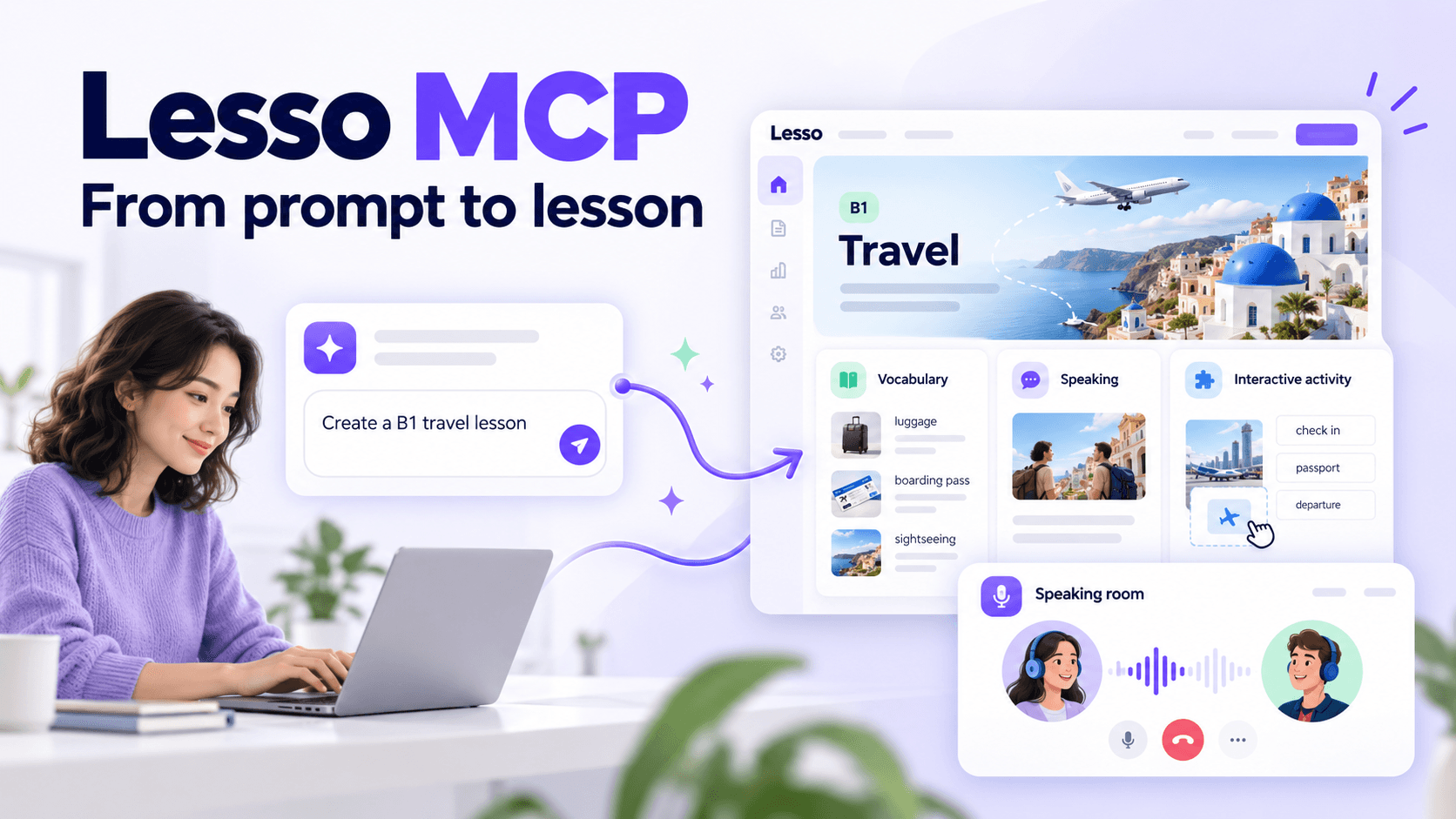
A new way to plan without leaving the chat
Teachers already draft lesson ideas in ChatGPT: a B1 travel unit, a hotel role-play, a quick grammar recycle after last week’s homework. The missing step was always the handoff—copying briefs into Lesso, clicking through create flows, waiting, publishing, inviting students.
Lesso MCP closes that gap. Connect once at lesso.me/connect, sign in with your teacher account, and ChatGPT can call Lesso on your behalf: draft and generate lessons, open speaking rooms, browse curriculum topics, adapt community lessons from Explore, check credits, and invite students—while you stay in the conversation.
Think of it as your usual Lesso workspace, reachable with a sentence instead of a dozen clicks. You still own the account, the credits, and the final publish decision. The model never invents lesson IDs or share links; it only reports what Lesso tools return.
Watch it in action
The walkthrough below shows a real teacher flow over MCP: exploring curriculum topics, creating a lesson, opening a speaking room, then adapting a community lesson from Explore. If you have not browsed the catalog yet, start on Explore—then come back and ask ChatGPT to do the same steps for you.
How to connect
Open Connect Lesso MCP and follow the OAuth prompt for your MCP client (ChatGPT developer mode / Apps, Claude, Cursor, and other MCP hosts work the same way).
Approve access for your teacher account. From then on, phrases like “Create a 50-minute B1 English lesson about asking for help after a flat tire” can hit live Lesso tools instead of stopping at a text outline.
Useful habit: ask the assistant to check your credit balance before expensive generation or AI-teacher speaking rooms, and keep drafts private until you explicitly ask to publish.
Lessons — from brief to published workspace
create_lesson_draft — Start a private lesson from a brief (language, level, length, age, optional curriculum topic). Use when you know the goal but still want to review before spending generation credits. Example: “Draft a B1 English lesson on hotel check-in for teens, 45 minutes.” Why it helps: you get a workspace URL immediately without locking into full AI generation.
generate_lesson — Queue AI content for a draft you already created. Use when the outline is right and you want blocks filled. Example: “Generate the travel lesson we just drafted.” Why it helps: separates planning from spending coins on generation.
get_generation_status — Wait once (up to 60 seconds) for generation to finish. Use after generate_lesson instead of polling forever. Example: “Wait up to a minute and tell me when content is ready.” Why it helps: avoids noisy loops and false “it’s ready” claims.
get_lesson — Read title, readiness, blocks, and URLs for a lesson you own. Use for status checks or to continue editing in chat. Example: “Show me the block outline for that flat-tire lesson.” Why it helps: grounds the next ask in real data.
update_lesson — Change title, prompt, language, level, or skill focus without regenerating everything. Use for light edits after a draft. Example: “Retitle it Asking for roadside help and set level to A2.” Why it helps: keeps the lesson ID stable while you refine the brief.
regenerate_block — Rebuild one weak block with optional extra instructions. Use when only the listening script or quiz is off. Example: “Regenerate the vocabulary block with more travel phrases.” Why it helps: cheaper than regenerating the whole lesson.
adapt_lesson — Clone a lesson toward a new level, language, or age. Use after copying from Explore or when the same topic must fit another class. Example: “Adapt this cafe lesson for A2 teens.” Why it helps: reuses structure instead of starting from zero.
publish_lesson / unpublish_lesson — Make a lesson shareable or take it private again. Use only when you are ready for students—or need to pull it back. Example: “Publish it with invite access.” Why it helps: keeps drafts safe until you say go.
list_lessons — Browse your library by keyword or language. Use when you forgot an ID or want “my last travel lesson.” Example: “List my English lessons about travel.” Why it helps: ChatGPT can resolve IDs without you digging in the admin UI.
invite_students_to_lesson / list_lesson_students — Email invites and check who opened or finished. Use after publish. Example: “Invite alex@school.edu and summarize who opened it.” Why it helps: assignment and follow-up stay in the same thread.
create_lesson_from_news — Seed a lesson from a news article URL. Use for current-events classes. Example: “Turn this news link into a B1 draft.” Why it helps: authentic input without manual paraphrasing.
create_lesson_from_reel — Seed a lesson from an Instagram Reel or TikTok URL (transcription may take a moment). Use when authentic short video is the hook. Example: “Create a lesson draft from this Reel.” Why it helps: same Reel pipeline teachers already love in Lesso, reachable from chat.
Speaking rooms — oral practice on demand
create_talk_room — Build a conversation or AI-teacher room from a brief (roles, CEFR band, situation). Use for quick role-plays. Example: “B1 hotel guest vs receptionist, AI teacher mode.” Why it helps: speaking practice without opening the Talk UI first.
create_talk_room_from_lesson — Spin a room from an existing lesson so oral practice matches what you just taught. Example: “Make a speaking room from the travel lesson.” Why it helps: vocabulary and scenario stay aligned.
create_talk_room_from_news — Discussion room from a news URL. Example: “Speaking room from this article for B2 adults.” Why it helps: debate-ready rooms from today’s headlines.
list_talk_rooms — Find rooms you already created. Example: “Show my unpublished speaking rooms.” Why it helps: resume instead of recreating.
publish_talk_room / unpublish_talk_room — Share or hide a room. Example: “Publish and give me the share link.” Why it helps: same privacy control as lessons.
invite_students_to_talk_room / list_talk_room_students — Assign speakers and review progress. Example: “Invite the same two students and tell me who joined.” Why it helps: homework speaking without a separate email draft.
Explore — borrow, then make it yours
search_explore — Search the public Explore catalog by keyword, level, or language. Use when you want “something like a cafe lesson” instead of a blank prompt. Example: “Find B1 cafe English lessons on Explore.” Why it helps: community quality without leaving chat.
copy_explore_lesson — Copy a public lesson into your workspace (may use coins). Use after you shortlist a hit. Example: “Copy that cafe lesson into my account.” Why it helps: one step from browse to editable draft—then adapt_lesson if the level is wrong.
Account, credits, and curriculum planning
get_credits_balance — See how many coins you have before expensive steps. Example: “How many credits do I have?” Why it helps: avoids mid-generation surprises.
get_recent_credit_spend — Review recent coin usage. Example: “What did I spend credits on this week?” Why it helps: budgeting and debugging unexpected charges.
get_org_context — Confirm organization vs personal workspace when you teach under a school account. Example: “Am I acting as my school org right now?” Why it helps: lessons land in the right place.
list_curriculum_topics / get_curriculum_topic — Browse the CEFR catalog and pull one topic’s can-do goal and grammar focus. Example: “Show B1 English topics about travel, then open hotel check-in.” Why it helps: syllabus-aligned planning without opening the picker by hand—and you can pass curriculumTopicId into create_lesson_draft or create_talk_room.
A sample evening with MCP
You type: “I need Thursday’s adult B1 class covered—travel, speaking heavy.” ChatGPT lists curriculum topics, you pick hotel check-in, it creates a draft, checks credits, generates, waits once for status, then builds a matching speaking room. You ask it to search Explore for a cafe lesson as backup, copy one, and adapt it for A2 teens for Friday.
Nothing is public until you say publish. Invites only go out with real emails you provide. URLs come from Lesso tools, not from the model’s imagination.
That is the point of Lesso MCP: the pedagogy still lives in Lesso—blocks, Talk rooms, Explore, credits—while ChatGPT becomes the remote control you already have open. From prompt to lesson, without leaving the chat.