2026-06-30 · 8 min read
Build lessons from the news: pick a headline, teach what is happening today
Turn real English-language headlines into ready-to-teach lessons. Browse or search current news, select an article, and Lesso pulls in the story, fills your lesson brief, and uses the article photo for your first image block—so students practice language on topics they already care about.
Teach the language of now
Students pay attention when the reading is about something that happened this morning—not a textbook passage written ten years ago. Today we are launching lessons from the news: a native resource picker built into Create a new lesson so you can start from a real headline instead of a blank description box.
Click From news next to Reference a lesson, browse today’s top stories or search for a topic, and pick the article you want. Lesso adds the headline, summary, source link, and article text to your lesson brief, then generates your block outline the way it always has. You review, edit, and publish on the same student link.
The goal is simple: authentic input, less prep time, and a clear reason to read, discuss, and write—because the story is real.
Where to find it
Open Create a new lesson in your teacher workspace. In step one, Describe your lesson, look beside Reference a lesson—you will see a new From news button with a newspaper icon.
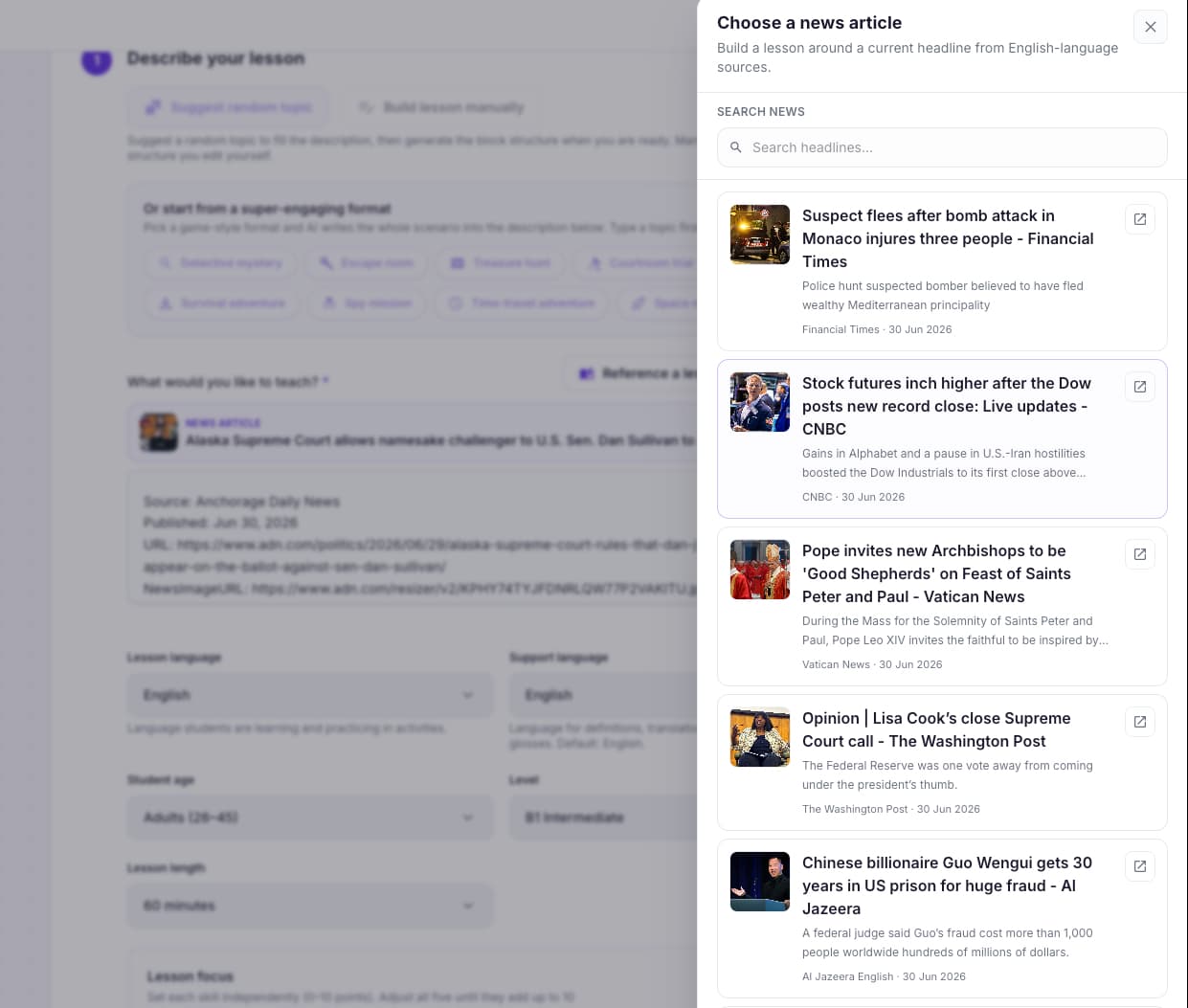
Click it to open a side panel (the same slide-in pattern as the reference-lesson picker). At the top is a search field labeled Search news. Below it is a scrollable list of articles with thumbnails, headlines, short summaries, and source names with dates.
Each row has an open-in-new-tab link so you can read the original on the publisher’s site before you commit. When you are ready, click the article itself to select it—the panel closes and your lesson brief updates automatically.
What happens when you select an article
Lesso fetches the article page and extracts the main body text (using the same kind of reader-style parsing browsers use for article view), then appends a structured block to your lesson description: headline, summary or full text, source, publication date, and URL.
You can edit that text before generating structure—trim a long piece, add your level and grammar focus, or pair the story with a reference lesson you taught last week. A chip above the description shows which article you picked, with its thumbnail and a link back to the source; clear it anytime to remove the news context from the brief.
If the publisher blocks automated fetching, you still get the headline and summary from the news feed—enough for AI to build a solid lesson, with the link for students who want to read more.
The article image becomes your first image block
When your generated structure includes an image block, Lesso uses the news photo for the first one instead of generating a new illustration—so the lesson opens with the same picture students saw on the front page.
That image is stored with your lesson like any other block asset. If you regenerate only that image block later, AI will create a fresh picture; a full lesson generation from the news brief keeps the article thumbnail.
This small detail matters in class: students recognize the story immediately when they open the lesson, and you do not spend credits on an AI image that would not match the headline anyway.
Browse vs search
With an empty search box, you see top headlines from English-language sources (default US feed). Those results are cached for the day so browsing stays fast and we stay within sensible API limits—the first load of the day fills the cache; the rest of the day reads from it.
When you type a search term, Lesso queries the news API live with your keywords, sorted by popularity from the start of the month—so a search for climate, elections, or Apple returns focused results, not yesterday’s cached homepage.
Use browse for “what should I teach today?” and search when you already have a topic in mind or want a specific event.
Strong lesson shapes for news topics
Current events work across levels if you narrow the language goal in the brief. For B1 adults, try “summarize the story, express opinion, B1”—AI will lean on reading, comprehension, and a short writing or discussion task. For B2+, add debate or problem-solving: “compare two sources, modals of deduction.”
Pair the article with blocks that match how news is actually consumed: a reading block for the adapted text, vocabulary for key terms from the headline, listening if you add a short teacher-recorded recap, true/false on claims in the story, and a speaking or AI conversation block for “explain this to someone who has not read it.”
You can still use super-engaging formats or reference a previous lesson—the news picker only replaces the topic source. Detective mystery plus a theft headline, or homework that continues vocabulary from last week’s unit, both work.
Copyright and classroom use
Lesso links students to the original publisher URL for reading; lesson blocks paraphrase and teach language around the topic rather than republishing the full article text. Treat it like any other authentic material: credit the source, use it for teaching, and prefer shorter adapted passages in blocks for lower levels.
If a story is paywalled or the extract is thin, use the headline and summary as the spine and assign the link as optional reading for stronger students.
Try it this week
Open Create a new lesson, click From news, and pick one headline your class would actually talk about. Skim the filled brief, set language level and lesson length, then generate structure.
Check that the first image block shows the article photo, preview as a student, and adjust one task block if needed. Publish the same link you always use—you have just turned the morning news into a lesson in a few minutes.
For the full block toolkit, see How to use lesson blocks effectively; for game-style scenarios on top of a news topic, try Super-engaging lesson formats next.