2026-06-24 · 7 min read
Live Drawing Tool: draw, highlight, and express right on your lessons
Teachers and students can now draw, highlight, underline, circle, and sketch directly on lesson content during live sessions—synchronized in real time on a shared canvas, with multiple colors, an eraser, and one-tap Erase all. Just like a real whiteboard, online.
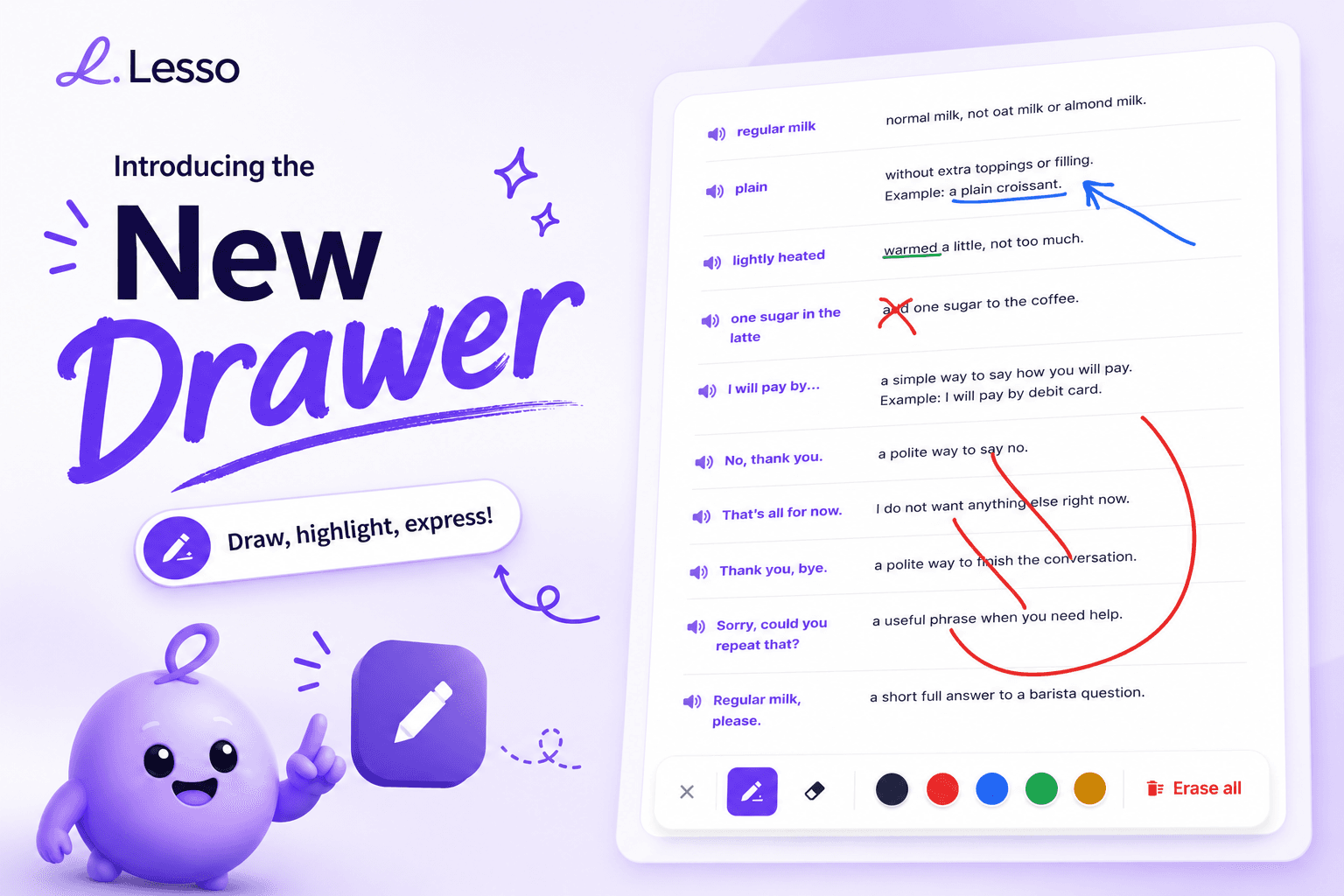
Bring your lessons to life with real-time annotations
Some things are easier to show than to say. A circled verb ending, an arrow from a pronoun to the noun it replaces, a quick cross through a wrong answer—these tiny marks are how teaching actually happens at a whiteboard. Today we are bringing that to Lesso with the Live Drawing Tool.
Teachers and students can now draw, highlight, underline, circle, and sketch directly on lesson content during a live session. Open the pencil, choose a color, and annotate right on top of the vocabulary list, reading passage, or task you are working through together.
The launch graphic says it in three words: draw, highlight, express. Marks land exactly where you make them—over the word, next to the example, around the phrase—so attention goes to the right place at the right moment.
How it works during a live session
Drawing is built into the live lesson, not a separate mode you have to set up. When a teacher and student are in a session together, a compact toolbar appears with the drawing tools. Tap the pencil to start annotating; tap it again to step back into normal scrolling and tapping.
Annotations are tied to the specific block you draw on—the vocabulary card, the passage, the image—so they stay anchored to that content as you move through the lesson. Each block keeps its own layer of ink, in both the card-by-card view and the full scrolling view.
Because it lives on top of the real lesson, there is no switching to a blank whiteboard and losing context. You explain the grammar point on the grammar block, underline the tricky vocabulary on the vocabulary block, and correct the answer right where the student wrote it.
Pen, eraser, colors, and Erase all
The toolbar keeps the essentials within reach. Switch between the pen and the eraser, and pick from a palette of colors—dark ink for neutral notes, plus red, blue, green, and amber for highlighting, correcting, and grouping ideas.
Use red to mark mistakes, blue to draw connections, green to confirm correct answers, amber to highlight key words—simple color habits make your annotations instantly readable for students.
Made a mess, or finished a point and want a clean slate? The eraser removes individual strokes, and Erase all clears your annotations in one tap so the next explanation starts fresh.
On larger screens the toolbar stays out of the way as a minimal floating control, and on phones it sits comfortably at the bottom so it never covers the content you are marking up.
A shared teacher–student canvas
Drawing in Lesso is collaborative. Annotations are synchronized instantly, so both the teacher and the student see new marks appear in real time—no refresh, no screen sharing.
Teachers can draw to guide a student through a problem and send those annotations straight to the student's screen. Students can draw too, marking their own thinking, answering visually, or pointing at what confused them.
Everyone controls their own ink: you can erase the strokes you made without wiping out the other person's annotations. That keeps a two-way session tidy—your corrections and the student's work stay distinct on the shared page.
Perfect for these moments
Explaining grammar visually—underline the auxiliary, arrow the word order, box the ending that changes.
Highlighting important vocabulary—circle the new words students should carry into the next activity.
Correcting mistakes together—cross out the wrong form and write the fix right beside it, in real time.
Drawing diagrams and mind maps—sketch a timeline of tenses or a quick web of related words.
Making lessons more interactive and engaging—invite the student to mark the answer themselves instead of just reading it.
Just like a real whiteboard — online
Multiple colors, real-time synchronization, and a shared teacher–student canvas combine into something familiar: the feeling of standing at a whiteboard together, except your class is online and the board is the actual lesson.
There is nothing to install and nothing to configure. Start a live session with a student, open the pencil, and annotate. When the point is made, tap Erase all and move on.
Try it in your next live lesson: open a vocabulary or grammar block, circle one key word, and ask the student to underline the answer back to you. That first shared mark is usually when it clicks—Lesso lessons just became a place you can draw, highlight, and express.