2026-06-07 · 12 min read
Personalize every lesson: custom colors, cover images, and organization branding
Lesso now lets you match lessons to your teaching style and school identity—custom accent colors on Plus and Max, cover images for every teacher, and full logo plus brand color on Professional and Scale organization plans.
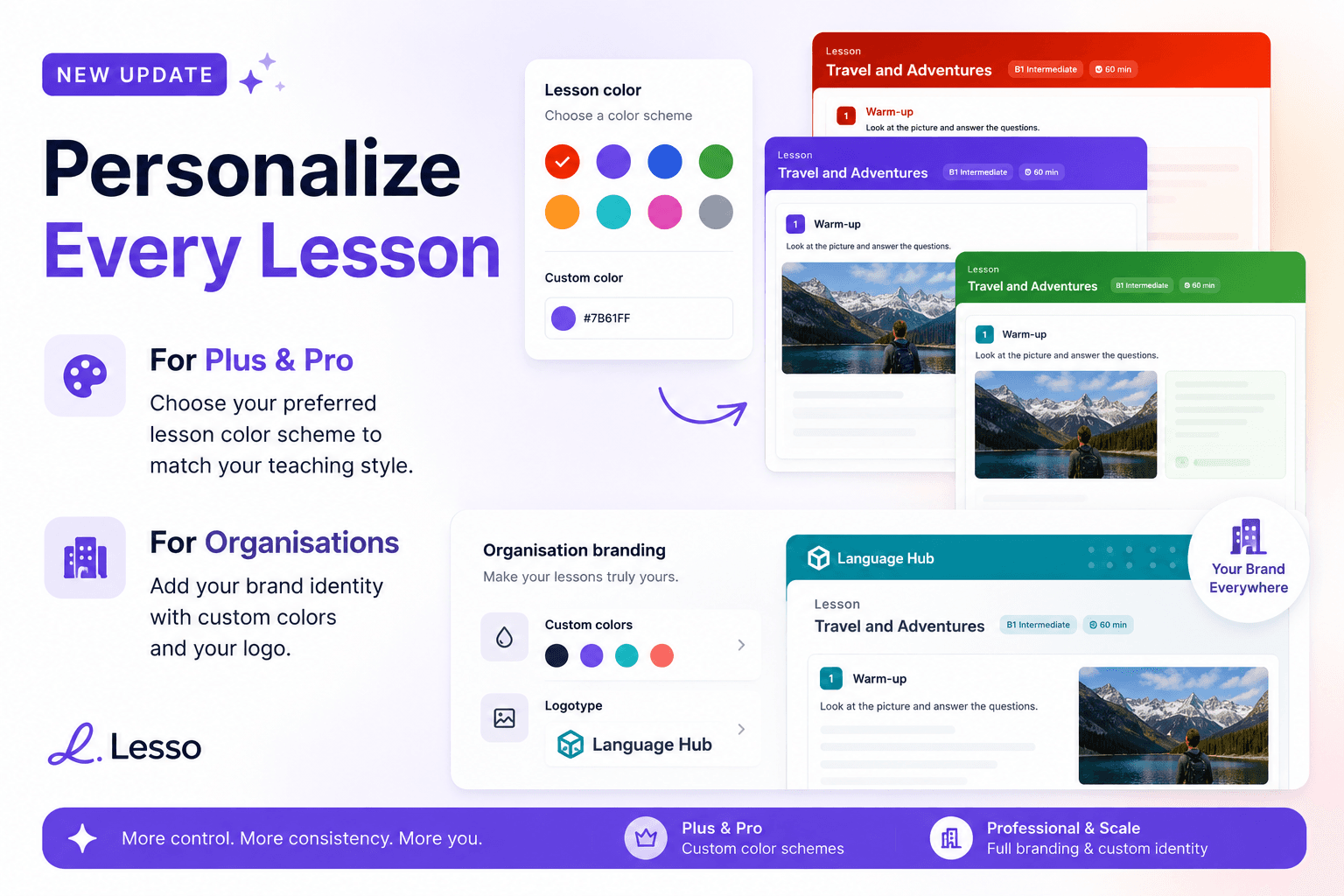
More control. More consistency. More you.
Generic purple headers work for a platform demo—not always for your classroom or your school. Today we are launching lesson personalization: choose how each lesson looks to students before they open the first card.
Solo teachers can set a custom accent color that replaces the default purple on buttons, progress bars, and the lesson hero—available on every plan, including free. Every teacher can upload a cover image that appears at the top of the student lesson page. Schools on Professional and Scale can go further—organization brand color and logo on team lessons, visible on every step.
The launch graphic shows the idea in one glance: preset color swatches and a hex picker on the left, lesson previews in red, purple, and green in the center, and a branded organization lesson with your logo in the header on the right.
Where to find appearance settings
Open any lesson in your teacher workspace. Above the lesson title banner you will see Appearance—cover image and lesson color.
Changes apply to this lesson only. Publish or re-open the student link to see the updated look. Preview and View lesson both reflect your color and cover so you can check the student experience before class.
If you copied a lesson from Explore, you may inherit the original teacher’s accent color on your copy. Lite teachers see that color read-only; upgrade to Plus or Max to change it for your students.
Cover image (all teachers)
Upload a JPG cover (max 2 MB) that sits in the lesson hero above the title—think unit artwork, a photo from your trip topic, or a simple branded banner.
Students see the image on the published lesson page and in card view. Remove or replace the cover anytime from the workspace; the previous file is cleared from storage when you remove it.
Library copies from Explore can bring over the source lesson’s cover automatically so your adapted copy still looks polished without re-uploading.
Lesson color (all teachers)
Pick a custom color for this lesson. The color flows through the student lesson: hero gradient accents, Next buttons, progress dots, and other purple highlights become your chosen shade.
A live mockup in the workspace shows how buttons and headers will look before you save. Reset to default anytime to return to Lesso purple.
Lesson color is per lesson, not account-wide—use calm blue for exam prep, warm orange for conversation club, and keep brand consistency across a unit by setting the same hex on each lesson in the series.
When you share a lesson link on social apps or messaging, the link preview image can use your brand color in the gradient background when one is set.
Organization branding (Professional and Scale)
Team admins open Settings → Lesson branding. Set your school or organization name, brand color, and upload a logo (JPG, max 2 MB). You can also use your profile photo as a starting point.
On published organization lessons, students see your color in the header and your logo on the hero strip and on each lesson card—your brand on every step, not only the landing page.
Toggle Show logo on lessons off if you want color-only branding without the logotype on student pages. Essentials-tier organizations see an upgrade prompt; Professional and Scale unlock full logo visibility.
Organization brand color takes precedence over per-lesson solo colors when the lesson belongs to your team library—one consistent identity across teachers in the same school.
What students experience
Students do not configure appearance—it is entirely teacher- or org-controlled. They open the same lesson link as before; only the visual shell changes.
Cover image, accent color, and organization logo appear in the student lesson shell (card view and full-page view). Task blocks, AI conversation, and live monitoring behave exactly as before.
Branding does not hide Lesso functionality or student progress; it layers on top of the same interactive blocks you already use.
Try it this week
Upload a cover on your next draft lesson and open Preview to see the hero image as students will.
On Plus or Max, set one accent color and run two lessons with different palettes to see how the same block layout feels with different moods.
If you lead a school on Professional or Scale, upload your logo, set brand color, publish a team lesson, and open View lesson to confirm the logo strip on each card.
For block types and sequencing ideas to pair with your new look, see our posts on interactive lesson blocks and the student flashcard library.