2026-09-03 · 5 min read
Real phrase examples from movies & TV — right in your lessons
Add a phrase and Lesso restreams how it’s used in real movie and TV clips via Clip.Cafe—authentic pronunciation, intonation, and natural speech for your students.
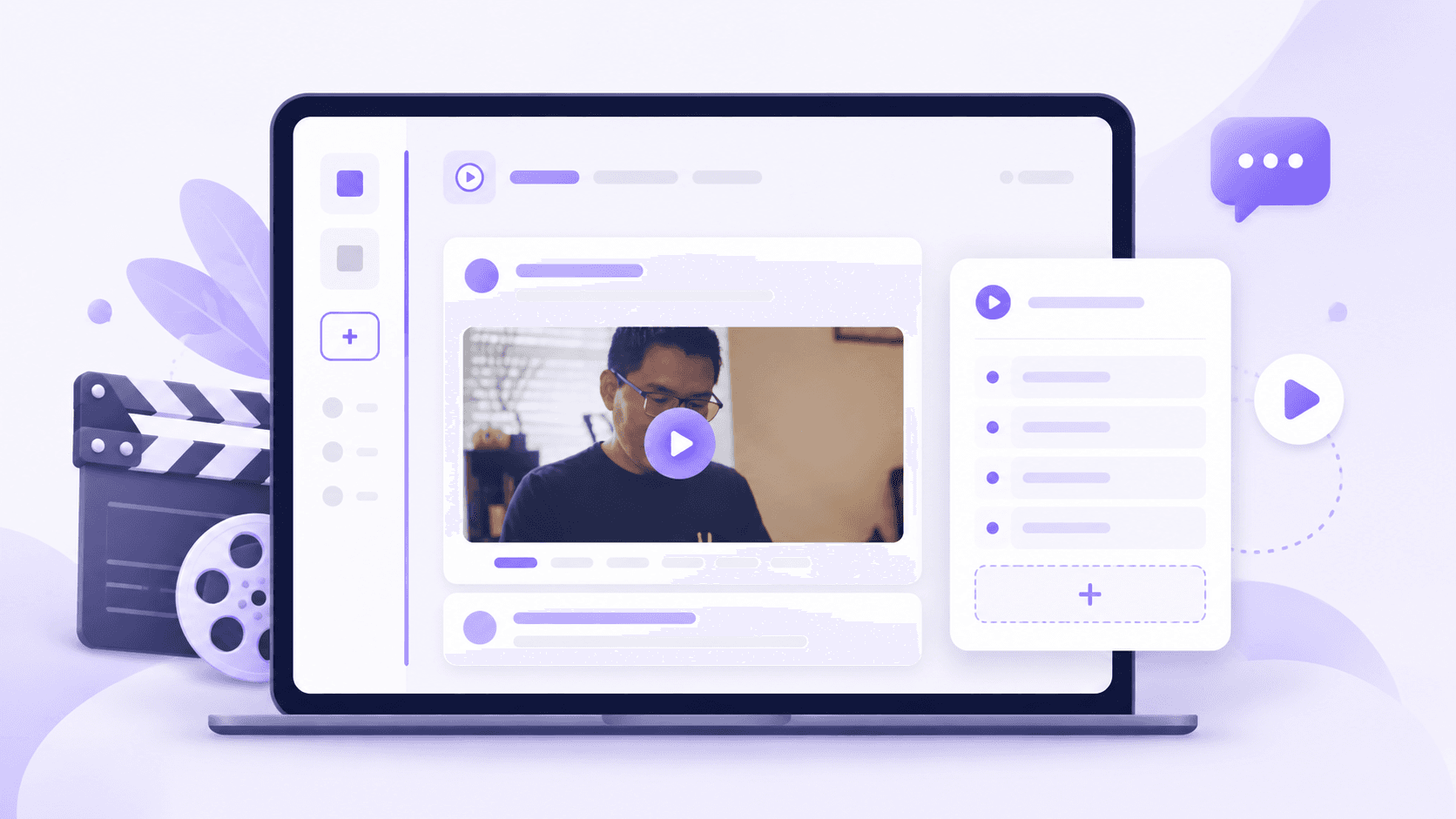
New: Phrase video clips
You can now add real phrase examples from movies & TV shows directly to your lessons with our new Clip.Cafe integration.
Simply add a phrase, and Lesso shows your students how it’s actually used in context — with real pronunciation, intonation, and natural speech.
No more hunting for audio files or acting out examples yourself. The new Phrase video clips block turns target language into something students can hear and see the way natives say it on screen.
How it works
Add the block — In your lesson structure, choose Phrase video clips (content block). You can add it yourself or let AI suggest it when the lesson is about idioms, chunks, or useful spoken phrases.
Type a phrase — Enter a short, natural line students should notice (for example another day another dollar or Would you mind…?). Optionally add a gloss or note in the support language.
Watch the first match — Lesso searches Clip.Cafe and restreams the first public movie/TV clip for that phrase. Students swipe through up to five phrases in one block.
Leave it empty for AI — If you add the block without phrases, generation invents lesson-relevant phrases for you (up to five). If you already typed phrases, we keep yours and don’t overwrite them.
Why teachers will love it
Context beats isolated vocabulary lists. A clip shows pacing, emotion, and intonation that a dictionary never will.
It fits the flow you already use: same lesson player, same publish and share path—just a new block type next to vocabulary, listening, and tasks.
Great for functional language, idioms, and “how natives actually say it” moments after a reading or grammar point.
Try it in your next lesson
Open Create a lesson, generate a structure (or build manually), and add Phrase video clips. Drop in two or three target phrases from this week’s topic—or leave the list empty and let AI propose them—then generate and preview the embeds.
In class, play a clip, ask students what they noticed about stress or tone, then reuse the same phrase in a speaking or flashcard task later in the lesson.
Clip.Cafe powers the search and embeds; Lesso keeps the experience inside your lesson so students stay focused on learning, not switching tabs.