2026-06-18 · 15 min read
Add flashcards to your profile: save decks, organize collections, and review anytime
Students can save flashcard decks from your lessons into a personal study library—with collections, lesson decks, and flip-through review. Teachers can create collections and add vocabulary cards anytime, even before a student saves a lesson deck.
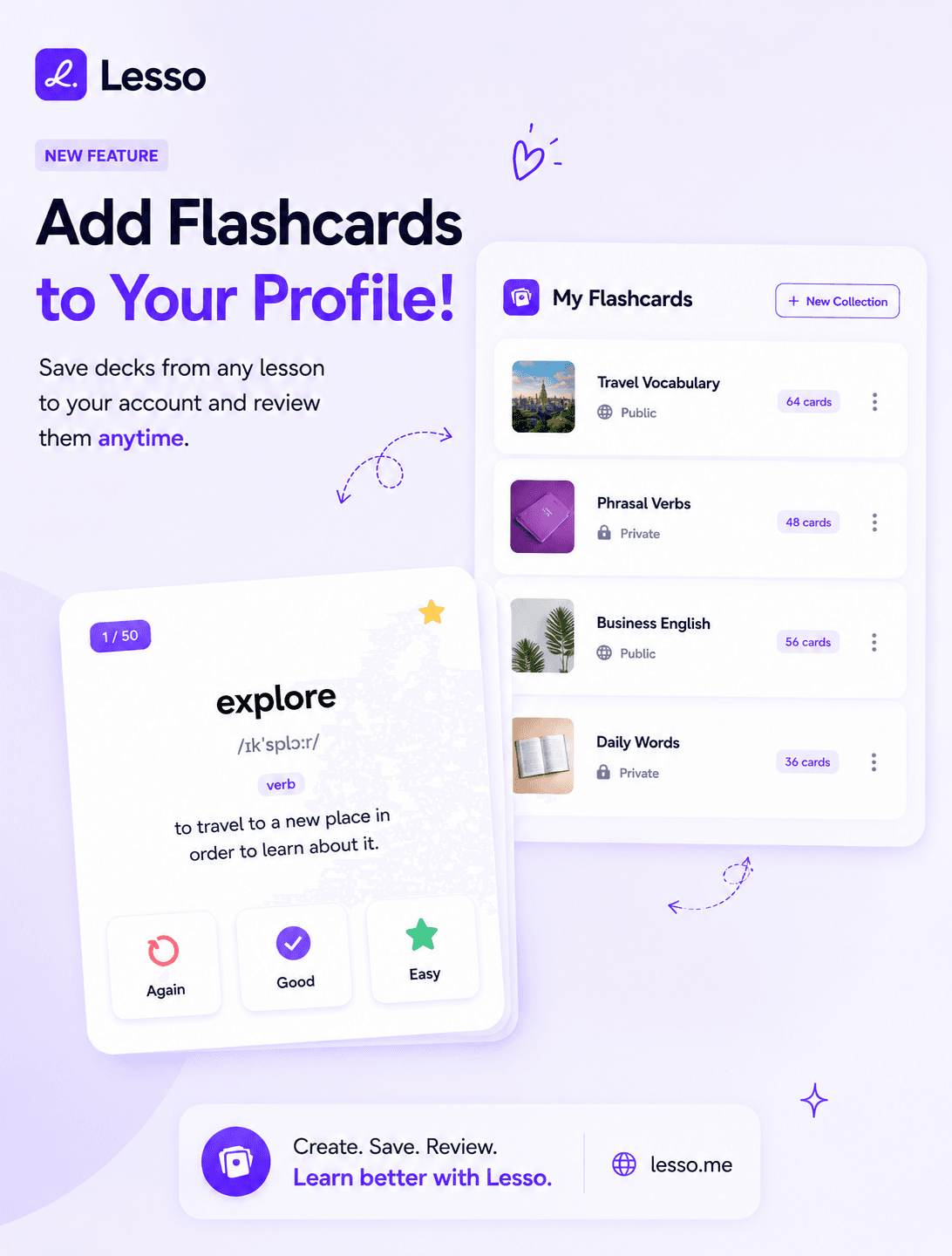
Create. Save. Review.
Vocabulary does not stop when the lesson ends. Today we are launching My flashcards—a student library where learners save decks from your flashcard steps, organize cards into collections, and come back to practice on their own schedule.
For teachers, the workflow stays familiar: you still build flashcard blocks inside lessons with AI. The difference is what happens after class—and what you can do before a student saves anything. Students tap Add to my library on any flashcards step, and that deck lives on their account until they delete it or you adjust it. You can open Saved flashcards on each student’s profile to create collections, add cards directly into a collection, move vocabulary between lists, or remove words that are not relevant.
The launch artwork shows the idea clearly: lesson decks on one side, a focused study card on the other, and collections in between—Create, Save, Review.
What students see during a lesson
When a student opens a flashcards step in your published lesson, they flip through term-and-definition cards as before. Above the deck they now see a compact banner: Save to your study library.
The first time through, they choose Add to my library. Lesso stores the deck tied to that lesson block—title, lesson name, and every card from the step. If you regenerate the flashcards block later, the student can update the library deck to refresh lesson-sourced cards while keeping any cards you added separately.
After saving, the banner offers Open deck so they can jump straight to My flashcards without hunting through menus.
My flashcards: collections and lesson decks
Students open My flashcards from the main student navigation. The page has two layers: Collections at the top and Lesson decks below.
Every student starts with a default collection called General. When they save a deck or you add a card for them, those cards are placed in General automatically. General is the home for all vocabulary unless the student organizes it further.
Students can create their own collections—Exam prep, Travel verbs, Unit 3, and so on. From any collection they can study with the same flip-through player used in lessons: progress counter, tap to flip between term and definition, and next/previous navigation.
Lesson decks list each saved deck from your classes with the lesson title underneath. That makes it obvious which deck came from which assignment, even when a student has five open lessons at once.
Moving and copying cards between collections
Collections are organizational, not separate copies of your lesson content. Each flashcard card still belongs to the underlying lesson deck in the database, but a card can appear in one or more collections through membership.
On a collection page, each card offers Move to… and Copy to…. Move removes the card from the current collection and places it in another—handy when a student wants Exam prep separate from General. Copy duplicates the card into another collection so the same word can be practiced in two lists without losing the original.
Students manage this themselves. You can do the same on their behalf from the teacher view described below.
Cards your students did not see in the lesson
When you add a card from Saved flashcards on a student profile, it is labeled Added by your teacher in the student library. That badge appears during study so learners know you extended the set beyond what was in the published lesson.
Teacher-added cards stay when a student updates a deck from the lesson; only AI-generated lesson cards refresh on update. Deletes you make from the teacher view remove the card from the deck entirely.
Where teachers manage student libraries
Open Students in your admin workspace, choose a student, and click Saved flashcards. You will see the same collections sidebar and lesson deck list they see.
You do not need to wait for a student to save a deck from a lesson. Create a collection—Exam prep, Travel extra, Unit 3—and add term/definition pairs straight into it. Those cards appear in the student’s My flashcards under that collection, labeled Added by your teacher.
When a student has saved lesson decks, you can still add cards to a specific deck or organize cards with Move to… and Copy to… between collections. Use this when a parent asks for extra words mid-week, when exam vocabulary arrives late, or when you want to prune cards that were too hard.
You do not need to republish the lesson to push new vocabulary into their library; the library is independent of the live lesson link once a deck is saved or you add teacher cards.
How this fits your lesson design
Treat flashcards in the lesson as the in-class moment: everyone flips together, you watch live progress, you discuss tricky terms. Treat My flashcards as the take-home layer: students who want another pass save the deck and review on the bus or before bed.
A practical sequence for a travel unit: vocabulary input → listening → in-lesson flashcards (required) → homework email reminding students to save the deck → next class, ask who moved words into an Exam prep collection.
Because saving is optional, you are not forcing extra work on every learner. Students who engage get a durable study path; students who only finish the lesson still count toward your completion metrics when they submit Done.
What is not in this release
My flashcards is not a full spaced-repetition app like Anki. There are no Again/Good/Easy scheduling buttons in Lesso today—study mode is intentional flip-and-review, matching the in-lesson flashcards experience.
Students cannot create brand-new cards from scratch in the library themselves; they save decks from your lessons and organize them. Teachers add extra vocabulary through Saved flashcards on the student profile.
Sharing collections between students is not supported; each library is private to the learner (with you as their teacher managing it).
Try it this week
As a teacher: open a student → Saved flashcards → create a collection → add two cards. Sign in as that student and confirm the cards appear under My flashcards with the teacher badge.
Publish or open a lesson that has a flashcards block. As a test student, complete the step and tap Add to my library. Open My flashcards, create a collection, and move one card into it.
If you are new to flashcards blocks themselves, read our post on the four interactive practice blocks—including in-lesson flashcards and multi-sentence word ordering—then come back here to extend the same vocabulary into students’ long-term study habits.