2026-11-15 · 5 min read
Turn YouTube videos into lessons
Paste a YouTube link. Lesso reads the captions, builds an editable lesson from what the video says, and places the video in the lesson.
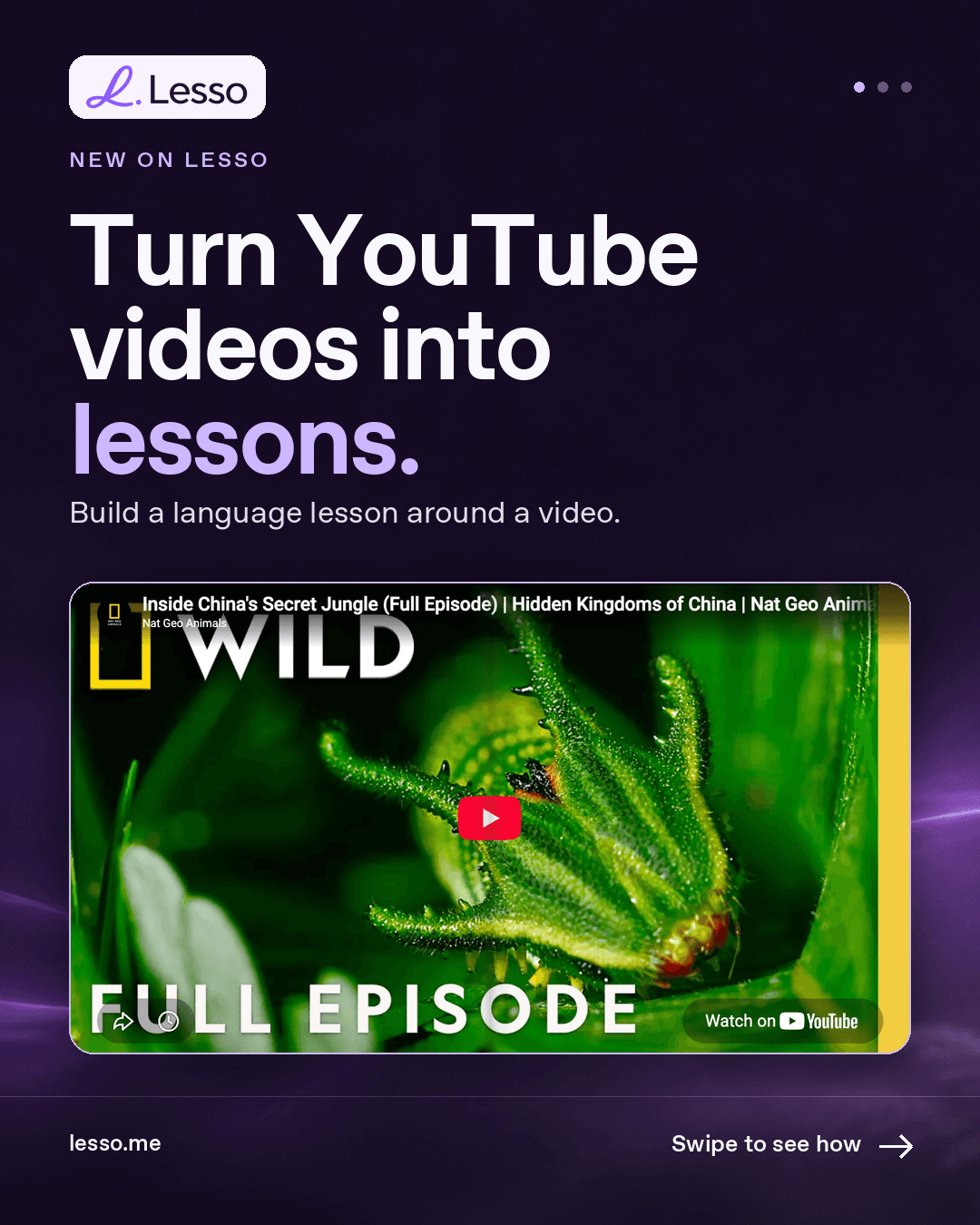
Start from a video your students should watch
A documentary, a talk, or a short clip is often the best start for a class. The hard part is turning that video into a lesson you can teach, with reading, vocabulary, and something for students to do.
Lesso can start from the video. Paste a YouTube link, and the lesson is built from what the video says. The video stays in the lesson, so students watch it and work with the language around it.
Paste the link and ask for the lesson
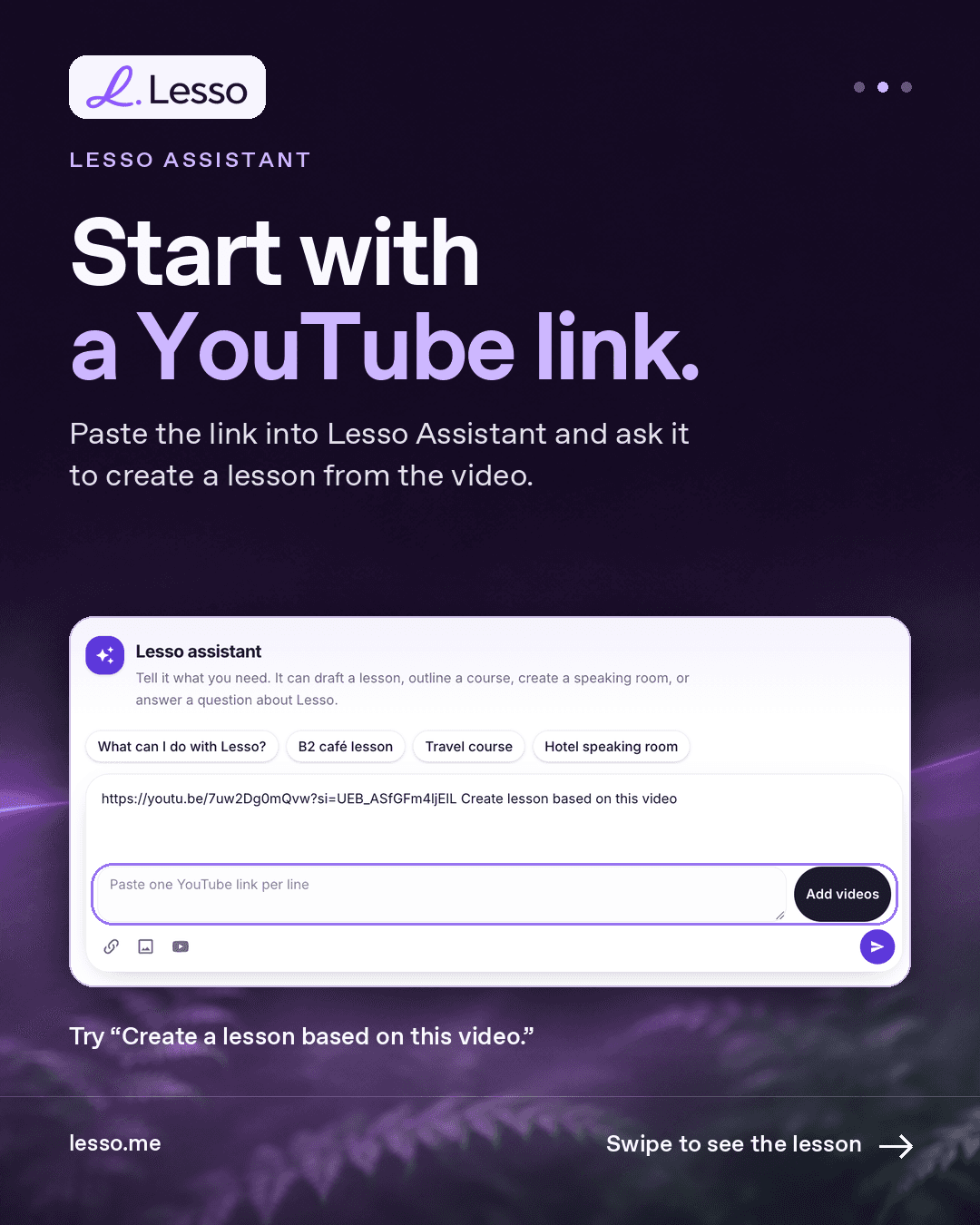
In Lesso Assistant, paste a YouTube link and ask it to create a lesson from the video. One message is enough: the link, then “Create a lesson based on this video.”
You can also start from Create a lesson. Open Quick start and choose Lesson from a video, paste a link into the lesson description, or use Add videos next to the photo and link buttons. Each attached video shows its thumbnail before you generate.
Up to six videos can go on one lesson. They are transcribed when you generate the structure, from the video’s captions.
The lesson follows what the video says
Lesso reads the captions and uses that transcript as the source. The outline, the reading, and the activities come from the video, not from a generic topic with the same title.
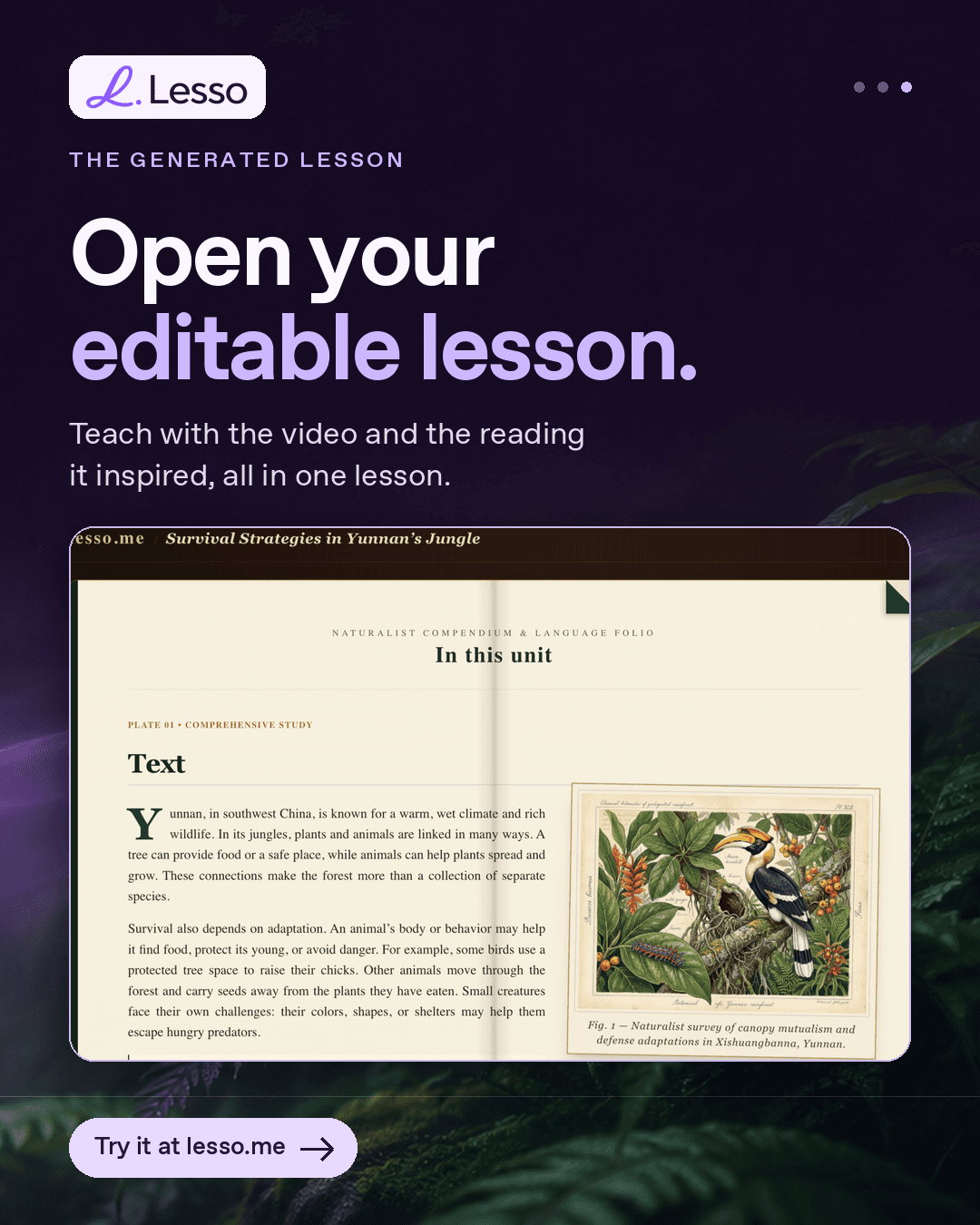
The video itself is placed in the lesson, so the class can watch it and then work with the language it inspired. A nature documentary can become a reading on survival, habitat, and cautious language. A talk can become discussion and vocabulary from that talk.
The video needs captions. If YouTube has none, Lesso cannot transcribe it.
Open it, then teach from it
The result is a normal Lesso lesson. Change the outline, edit an activity, or generate again. Publish it when it is ready for students.
You can also lay that lesson out as one page, with the reading and the video’s ideas in a single design. The activities stay live either way.
Several videos, a course, or a speaking room
Attach more than one video and Lesso uses each of them. On a course, the first lessons follow the videos you attached, in order, and later lessons stay on the same subject. A note in your prompt can ask for a different split.
A speaking room can start from the same kind of link. Paste the video, and Lesso drafts the room from the transcript. Transcribing a video for a speaking room costs 4 coins.
Try it on the next class
Pick a video you already wanted to show. Paste the link into Lesso Assistant, or add it from Lesson from a video, and generate the lesson.
Your students get the video and a lesson built from it. Try it at lesso.me.