2026-10-11 · 5 min read
Unsplash photos. Now in Lesso.
Search millions of free Unsplash photos inside your lesson editor, drop them into image blocks and photo tasks, and let AI pick matching stock photos when it builds image exercises—with AI image generation as a fallback.
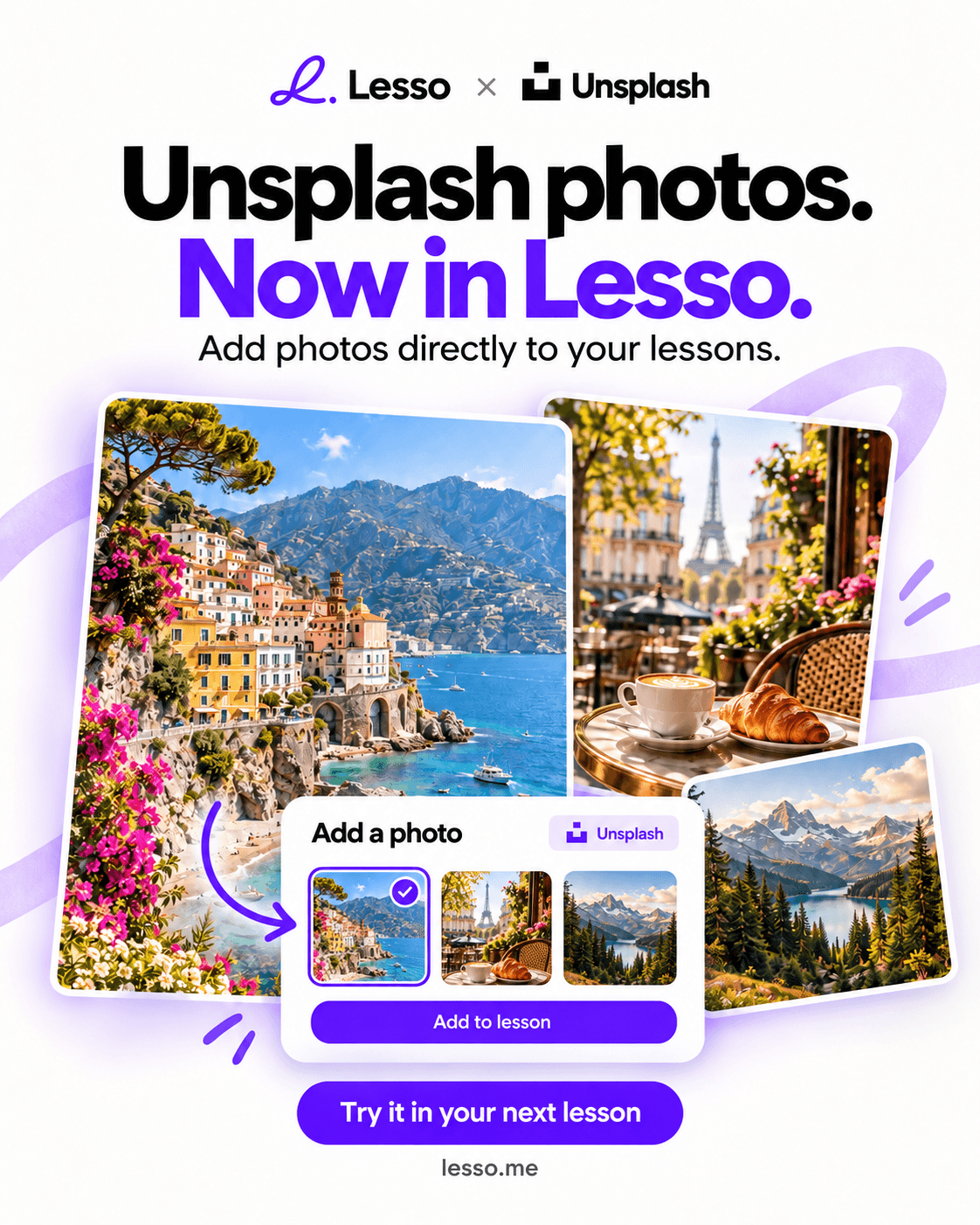
Beautiful photos, without leaving the editor
Great language lessons need clear visuals: a café for role-play, a mountain trail for travel vocabulary, a breakfast table for food words. Until now you either uploaded your own files or waited on AI-generated art. Now you can pull high-quality Unsplash photos straight into Lesso.
Open an image block, a board-game visual, or any photo task slide, switch to the Unsplash tab, search, and pick. We save a copy into your lesson assets so students always see a stable image—not a fragile third-party link.
Where you can use Unsplash
Image blocks — replace or set the main visual for an Image content step from Edit block → Upload / Unsplash.
Board-game blocks — swap the generated board art for a stock photo when a real-world scene fits better (or keep AI art and only use Unsplash when you want).
Photo tasks — Label the image, Match text to image, Pick the caption, and Odd one out each let you upload your own file or choose from Unsplash per slide.
Search is optional: paste or upload still works exactly as before. Unsplash is an extra source, not a replacement.
How the search picker works
In the edit panel, choose the Unsplash tab next to Upload.
Type a short subject — for example coffee shop counter, red apple on table, or airport departure board.
Browse the grid of results, page with Previous / Next if you need more options, and click Use this photo on the one you want.
Lesso downloads the photo, stores it with your lesson, and wires it into the block. Credits are not charged for Unsplash picks—only for AI image generation when that path runs.
AI photo tasks: Unsplash first, AI if needed
When Lesso generates image-based tasks (label, match, caption, odd one out), the model writes a short stock-photo search phrase for each picture—not a long art brief.
We search Unsplash with that phrase and attach a random photo from the results. That keeps vocabulary tasks grounded in real-world photos students recognize.
If Unsplash is unavailable or returns nothing useful, we fall back to AI image generation for that slide so the lesson still completes.
Image and board-game content blocks still generate with AI by default. Unsplash there is for when you want a specific look while editing.
Tips for stronger photo lessons
Search with concrete nouns and scenes (croissant and coffee, not breakfast vibes) so results match what students should name or discuss.
For odd-one-out sets, pick three photos from one clear category and one related outsider—Unsplash makes that fast to assemble by hand if generation is close but not perfect.
After generation, open any weak slide, switch to Unsplash, and replace it in seconds without regenerating the whole task.
Pair a strong visual with a speaking or writing prompt so students do something with the photo—not only look and move on.
Try it in your next lesson
Open a lesson workspace, edit an Image block or a photo task, and use the Unsplash tab to add a scene that fits this week’s topic.
Or generate a Label the image / Match text to image task and let Lesso pull Unsplash photos automatically—then tweak any slide you want by hand.
Your students get clear, classroom-ready pictures inside Lesso. You keep the whole flow in one editor.