2026-09-05 · 4 min read
Find classroom YouTube videos without leaving your lesson
Search YouTube inside the Video block, preview clips in a popup, page through results, and embed with one click—or still paste any YouTube or Vimeo link.
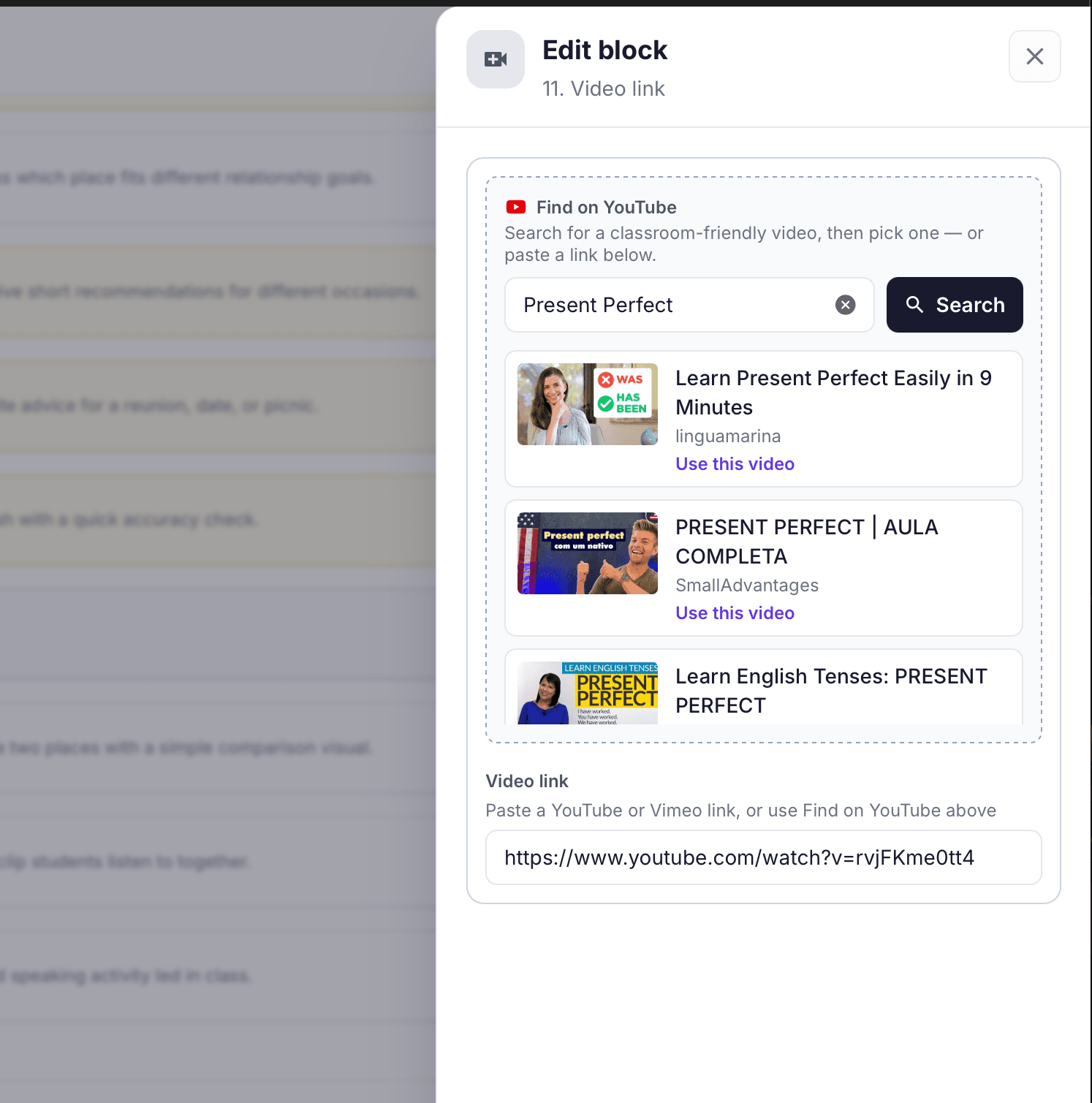
New: YouTube search in the Video block
You no longer need to leave Lesso, open YouTube in another tab, copy a URL, and hop back. The Video block now includes Find on YouTube—search, preview, and embed without breaking your editing flow.
It is built for classroom use: results prefer embeddable videos with safe search on, so you spend less time filtering and more time teaching.
Where to find it
Open any lesson in the teacher editor (Create a lesson → structure, or an existing lesson workspace).
Add a Video block from the block picker (content materials), or edit an existing Video / Video link block.
In the Edit block panel you will see Find on YouTube at the top, with the Video link field underneath for paste-your-own URLs.
How to use YouTube search
Type a topic or language point — for example Present Perfect, airport check-in dialogue, or past simple stories for teens.
Click Search. Lesso returns a list of classroom-friendly matches with thumbnails, titles, and channel names.
Preview — open a clip in a separate popup to check length, level, and suitability before you commit.
Use this video — fills the Video link field with the YouTube URL so the embed is ready for students.
Need more options? Use Previous / Next to page through more results without starting a new search.
Prefer a link you already have? Paste any YouTube or Vimeo URL in Video link as before—search is optional.
What students see
Once the lesson is published, the Video block appears in the student lesson view with the embedded clip—same as other custom materials (images, audio, documents).
Age-restricted or non-embeddable videos may still fail to play in the iframe; Preview helps you catch those before class.
Tips for stronger picks
Search with the language point plus ESL or explanation (for example present perfect ESL) to surface teaching-oriented channels.
Preview short explainers for input stages; save longer authentic clips for later listening or discussion blocks.
Pair a Video block with vocabulary or speaking tasks so students do something with what they watched—not only play and forget.
Try it on your next lesson
Open a lesson, add or edit a Video block, search for this week’s topic, preview one or two options, then Use this video and publish.
Your students get the clip inside Lesso; you keep the editor workflow in one place.